Training series · 11 videos with captions
How do I use Medipyxis? Video training, from referral to signed visit
Eleven short videos walk through Medipyxis the way a wound care practice uses it: finding your way around, HR and staff onboarding, the referral CRM, adding a patient, assigning and booking them, documenting and signing the visit, orders and DME, Fleet Calendar, the Oversight Cockpit and Team Chat. Each video has on-screen captions and a full text transcript below it.
The videos have no sound; the narration is shown as captions and written out under each video. They were recorded in the Medipyxis demo system with made-up patients. Staff names, emails, phone numbers and real organizations' names are blurred.
- How do I find my way around Medipyxis?
- How do I onboard staff and track credentials in Medipyxis?
- How does Medipyxis help manage referral sources?
- How do I add a new patient referral in Medipyxis?
- How do I assign a patient to a provider and book the first visit?
- How does a provider document and sign a wound care visit in Medipyxis?
- How do I set up vendors and order forms for DME and lab orders?
- How do I create a home health or DME order for a patient?
- How do I manage provider schedules and routes in Medipyxis?
- What can practice leaders see in the Medipyxis Oversight Cockpit?
- How does my team message each other about a patient in Medipyxis?
- Questions and answers
How do I find my way around Medipyxis?
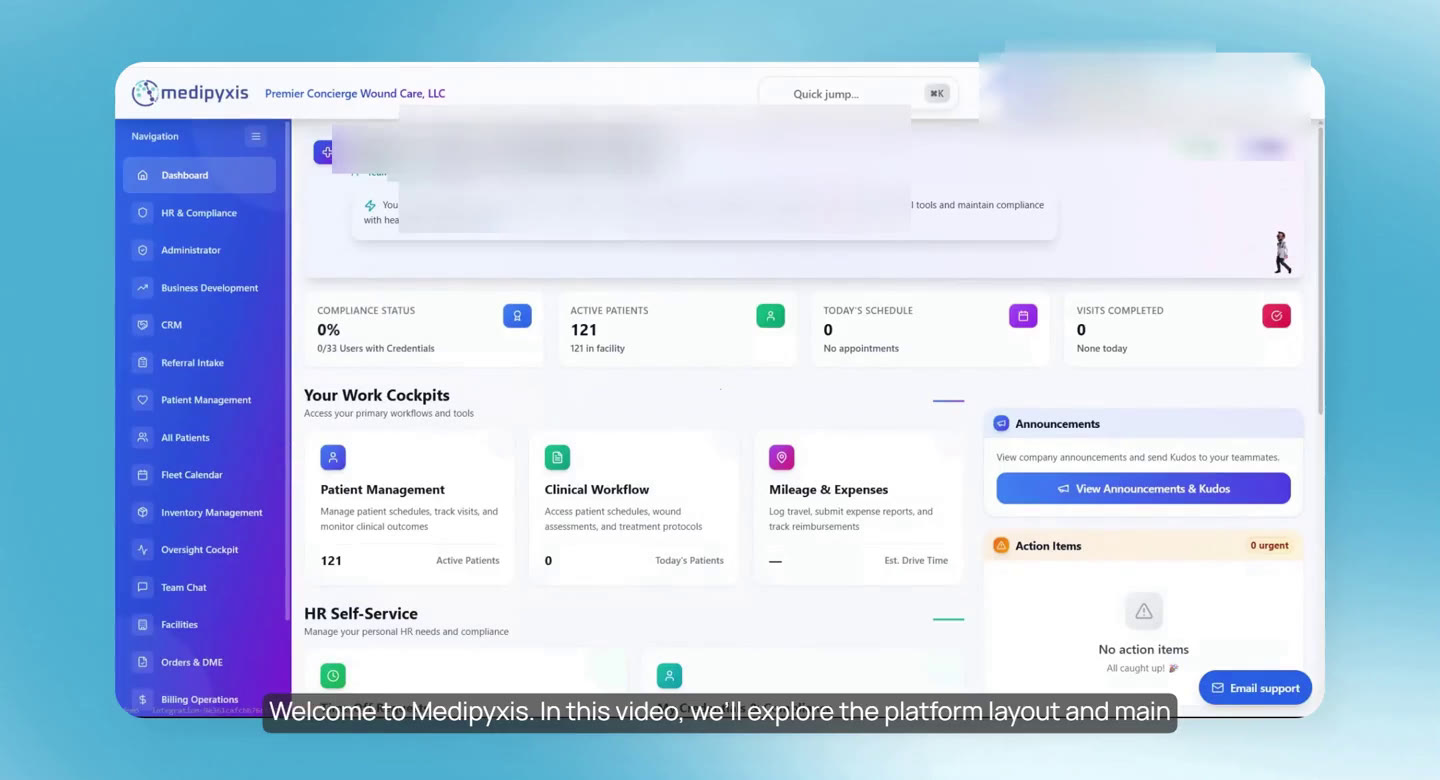
A tour of the screen: the left sidebar opens every area your role can use, the facility you are working in is at the top, and the dashboard shows your day. Then a quick look at each main area: HR and Compliance, Business Development, Inventory, Orders and DME, Billing Operations, the Oversight Cockpit, Referral Intake, Patient Management, All Patients and the visit wizard.
Why it matters: New staff learn where everything is in four minutes, before they open their first patient.
Transcript of this video
- 0:03 Welcome to Medipyxis. This video covers the platform layout and main navigation before moving into individual workflows.
- 0:08 The left sidebar is your main navigation. It opens patient care, inventory, orders, CRM and the other areas available to your role.
- 0:23 The current facility is shown at the top. If you have access to more than one facility, you can switch facilities in the top-right corner.
- 0:38 The dashboard gives a quick overview of your workday, including appointments and items that need your attention.
- 0:50 Medipyxis supports the everyday operational workflows of a clinic, both administrative and clinical.
- 1:00 HR and Compliance is one hub for HR operations, team services, regulatory compliance and internal communications.
- 1:12 The Business Development dashboard is where you monitor practice partnerships, measure return on outreach and follow facility referrals.
- 1:26 Inventory Management is where you manage stock levels, fulfill supply requests and work with vendors.
- 1:42 The Orders and DME hub coordinates durable medical equipment, lab orders, imaging requests, clinical referrals and home health services in one place.
- 1:58 Billing Operations is where you track submitted claims and follow the revenue cycle.
- 2:09 The Oversight Cockpit gives a high-level view of performance metrics and trends across core operations.
- 2:24 On the clinical side, Medipyxis keeps notes, compliance reviews and patient data in one place.
- 2:42 Referral Intake is where incoming patient referrals are managed, making sure patient and financial details are complete before clinical work starts.
- 2:58 The assignment assistant pairs a patient with a provider based on distance and workload.
- 3:18 Smart appointment booking suggests appointment times using provider calendars and travel routes.
- 3:34 Patient Management has the daily tools to manage schedules, track visits and monitor patient outcomes.
- 3:47 All Patients is where you review each patient's profile and use the wound cockpit for documentation guidance during visits.
- 4:00 The next videos go through each workflow step by step, starting with patient intake.
How do I onboard staff and track credentials in Medipyxis?
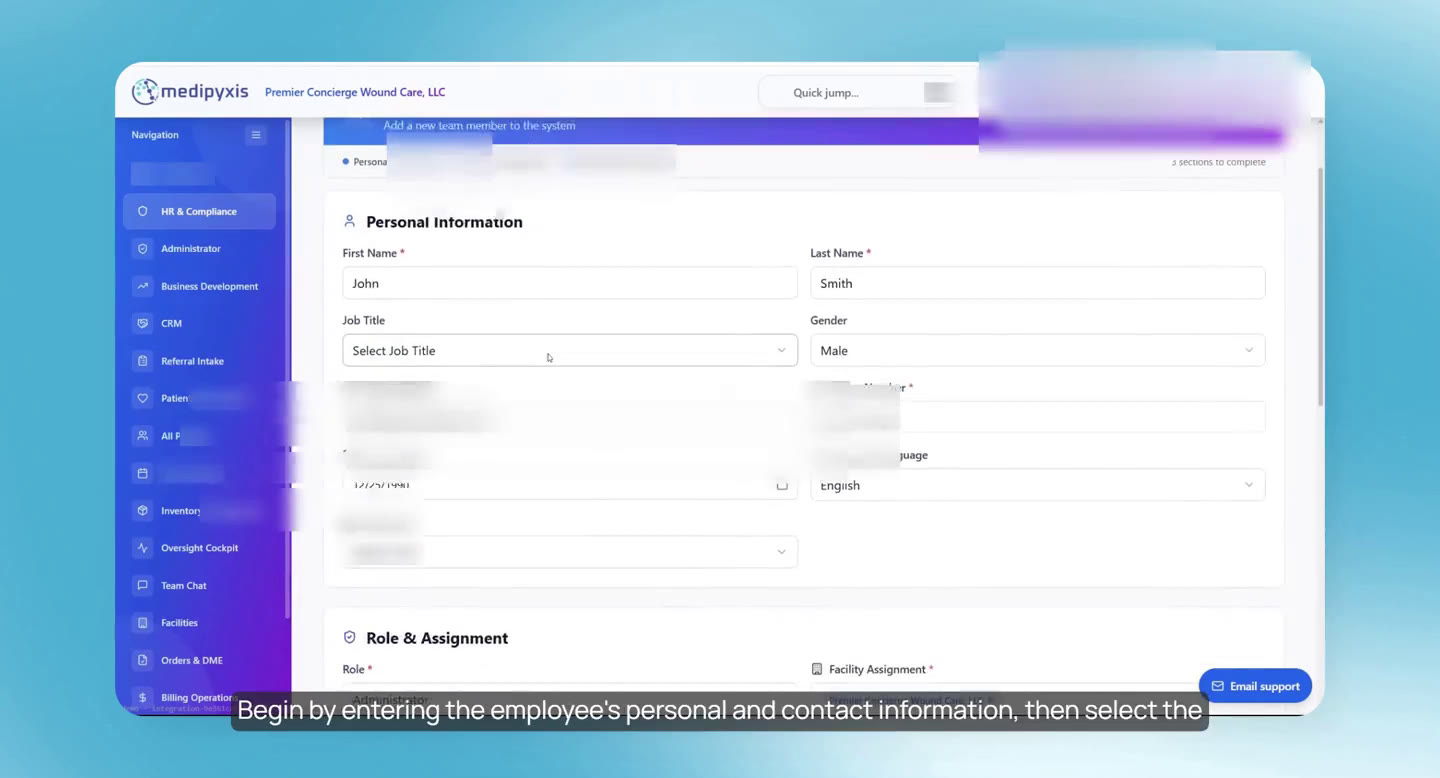
The Human Resources Hub: post announcements, upload provider credentials in the Credential Tracker, check Activity Logs, and add a new employee in New Employee Onboarding. Choosing the Clinician role adds the provider fields (printed name, initials, NPI and state license). Facility Users, Education Bundle Management and Training Materials are shown last.
Why it matters: Staff records, provider credentials and training live in the same system as the patients they see.
Transcript of this video
- 0:02 This video covers HR and compliance: employee onboarding, facility user management, credentials and training resources.
- 0:12 Announcements post company updates for staff to read inside Medipyxis.
- 0:21 The Credential Tracker is where provider credentials are uploaded and kept organized for tracking.
- 0:32 Activity Logs show recent staff access to Medipyxis.
- 0:41 To onboard a new employee, open New Employee Onboarding.
- 0:51 Enter the employee's personal and contact information, then choose the job title. The role decides which other information is required.
- 1:00 Choosing Clinician adds the fields for providers who see patients: professional title, printed name, initials, NPI number and state license.
- 1:18 Check the clinician's email, phone number and address carefully. The address is also used to support scheduling by location.
- 1:37 Facility Users is where authorized administrators manage existing users, edit their details, and activate or deactivate accounts.
- 1:53 Education Bundle Management has ready-made bundles of patient and caregiver education. Create Bundle sets up a custom one.
- 2:11 Training Materials gives access to Medipyxis user guides and other clinical and professional training.
- 2:24 That completes HR and compliance: onboarding, facility users, credentials, and education and training.
How does Medipyxis help manage referral sources?
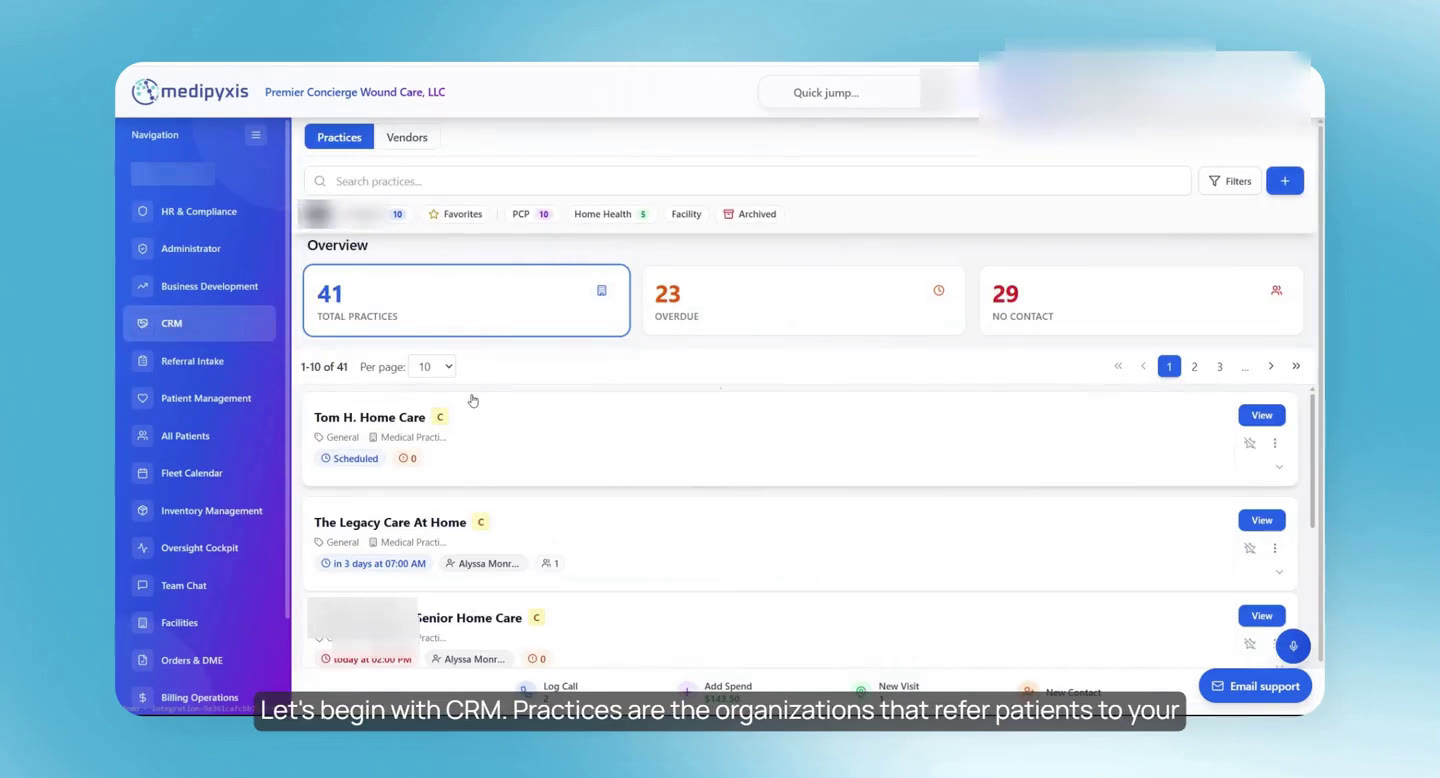
In CRM, practices are the organizations that refer patients, such as home health agencies and skilled nursing facilities. Each practice is assigned to a business development rep, and follow-ups are scheduled. Business Development shows each rep their practices, a route map for outreach visits, Log Update for calls and visits and Add Spend for outreach costs. The Oversight Cockpit shows referral trends by practice.
Why it matters: Outreach, follow-ups, spending and the referrals they bring in are tracked in one place.
Transcript of this video
- 0:02 This video shows how CRM, Business Development and the Oversight Cockpit work together to manage referral relationships and outreach.
- 0:13 In CRM, practices are the organizations that refer patients to your team, such as home health agencies or skilled nursing facilities.
- 0:24 Add your referring practices to CRM so the team can organize contacts, follow-ups and outreach. Then assign each practice to a business development rep who manages the relationship.
- 0:42 You can also schedule a follow-up for the next contact with the practice. The follow-up also appears in Business Development.
- 0:58 In Business Development, users see the practices assigned to them and plan outreach visits: choose the rep, then add the practices to visit to the route.
- 1:16 The map shows the route for the outreach visits.
- 1:20 Log Update records an activity, such as a call or visit, with notes on the conversation and next steps. Add Spend records outreach expenses for a practice.
- 1:37 The Oversight Cockpit connects this activity with referral performance. Referral trends show how referrals from each practice change over time.
- 1:48 See which practices are sending more referrals and which have dropped, to decide where to follow up and visit next.
- 1:58 Together these tools organize referral relationships, plan outreach, record activity and use referral trends to guide next steps.
How do I add a new patient referral in Medipyxis?
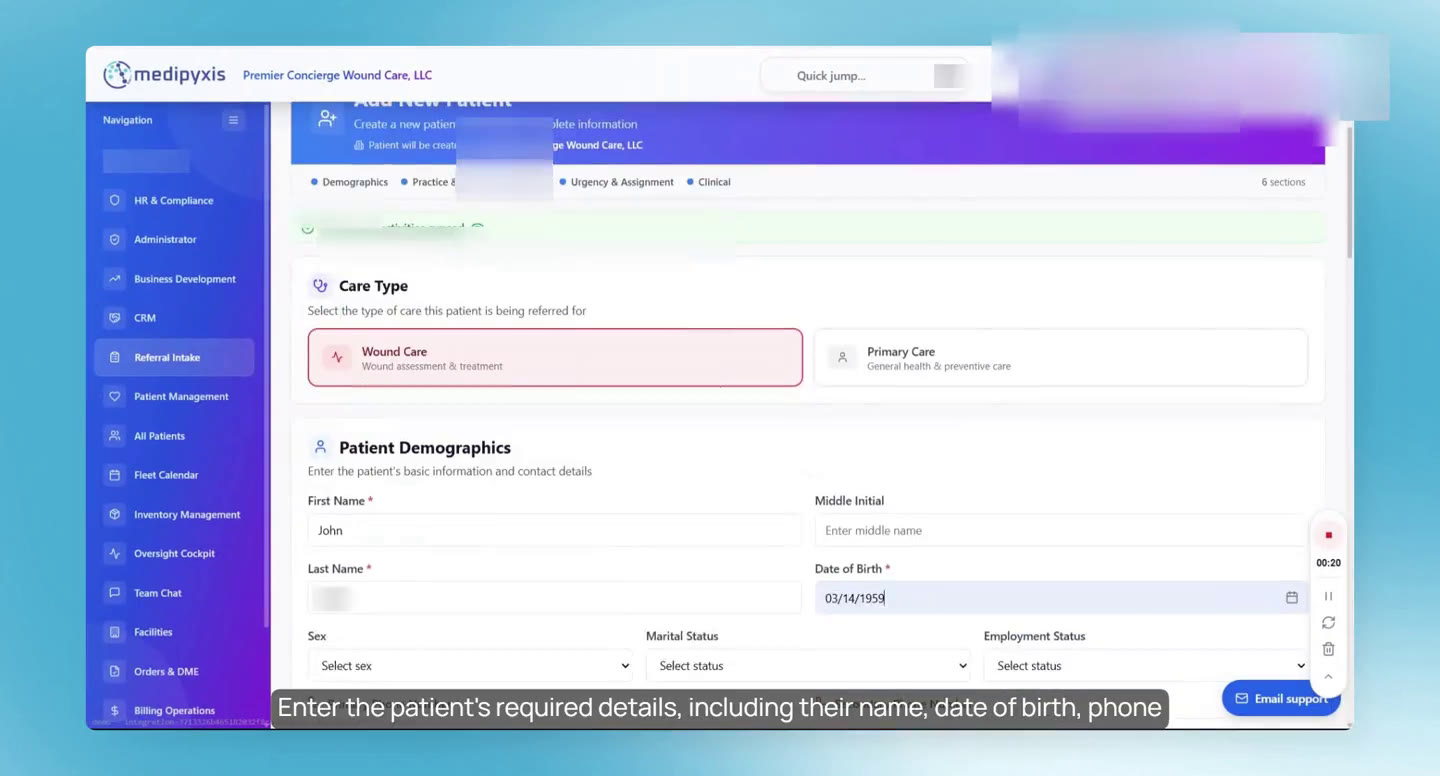
In Referral Intake, Add New Referral opens the intake form: care type, demographics (name, date of birth, phone, address), a duplicate check, the referring provider and insurance, with an optional Verify for coverage. Create Patient saves it, and the referral appears under New Referrals until it is ready for assignment.
Why it matters: Every new patient starts from one form, with duplicates and insurance checked before the record is created.
Transcript of this video
- 0:02 This video adds a new patient through Referral Intake, where the intake workflow begins.
- 0:06 Click Referral Intake, then Add New Referral.
- 0:16 Enter the patient's required details, including name, date of birth, phone number and address. Review any duplicate alert before creating a new record.
- 0:23 Add the referring provider and insurance information. Verify checks coverage. Then review the details before continuing.
- 0:33 When everything looks correct, click Create Patient.
- 0:37 The referral now appears in New Referrals, where the intake team completes any remaining steps.
- 0:52 When no intake steps remain, move the patient to Ready for Assignment.
- 1:01 The next video shows how to assign the patient to a provider.
How do I assign a patient to a provider and book the first visit?
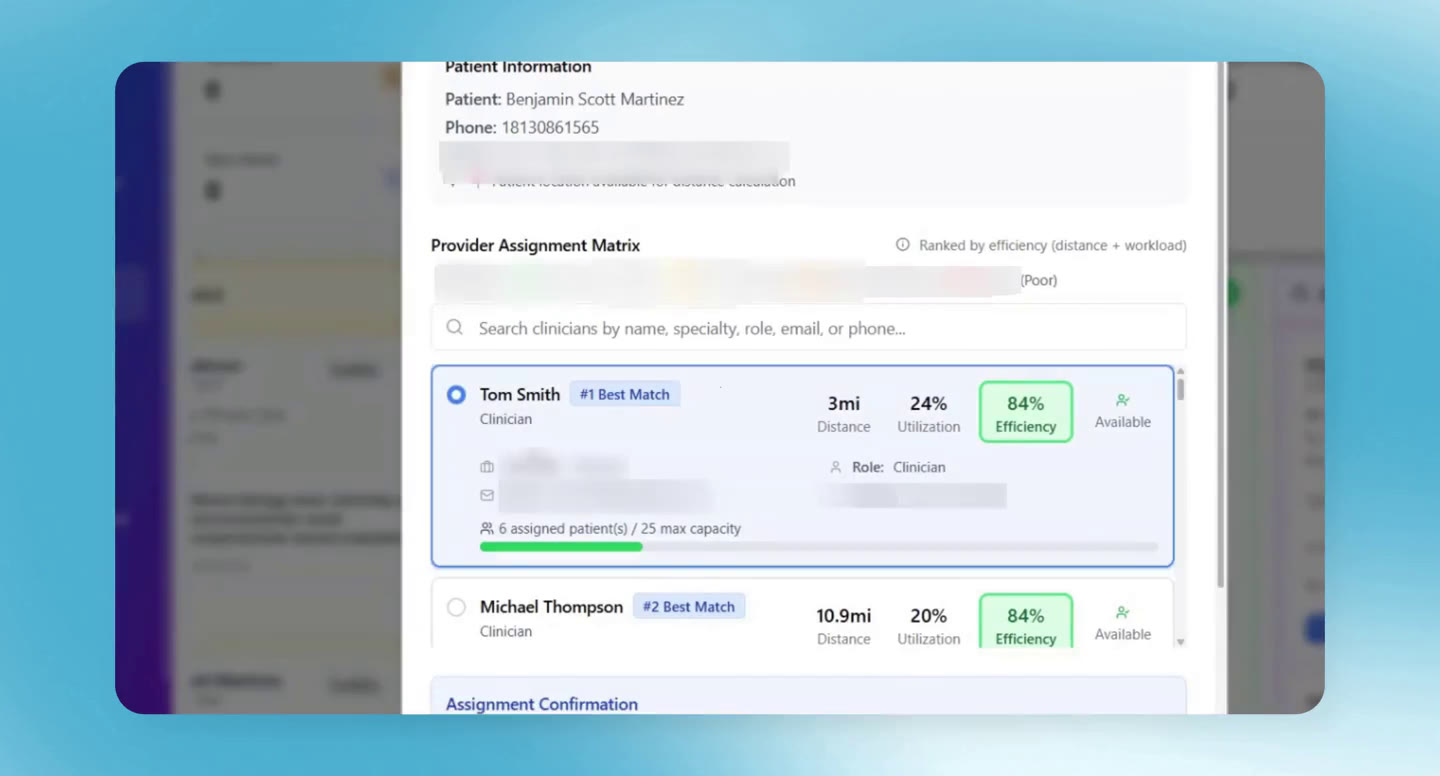
From Ready for Assignment, Assign shows providers ranked by distance to the patient, availability and efficiency. After confirming, the patient moves to Assigned. Schedule opens the booking form with the provider filled in: visit type, place of service, clinician type, date and a free time slot.
Why it matters: The right provider and a real time slot are picked from distance and workload, not guesswork.
Transcript of this video
- 0:02 This video shows how to assign a patient to a provider.
- 0:06 When the patient is ready for assignment, select Assign. The system recommends a provider based on distance to the patient, availability and efficiency.
- 0:19 Review the recommendation, select the provider, then confirm the assignment.
- 0:29 The patient moves to Assigned. From Assigned, select Schedule.
- 0:35 The assigned provider is already filled in. Complete the appointment details: visit type, place of service and clinician type.
- 0:44 Choose a date and one of the available time slots, then book the appointment.
- 0:56 The visit now appears in Patient Management for the provider. The next video shows how the provider sees scheduled patients and documents the visit.
How does a provider document and sign a wound care visit in Medipyxis?
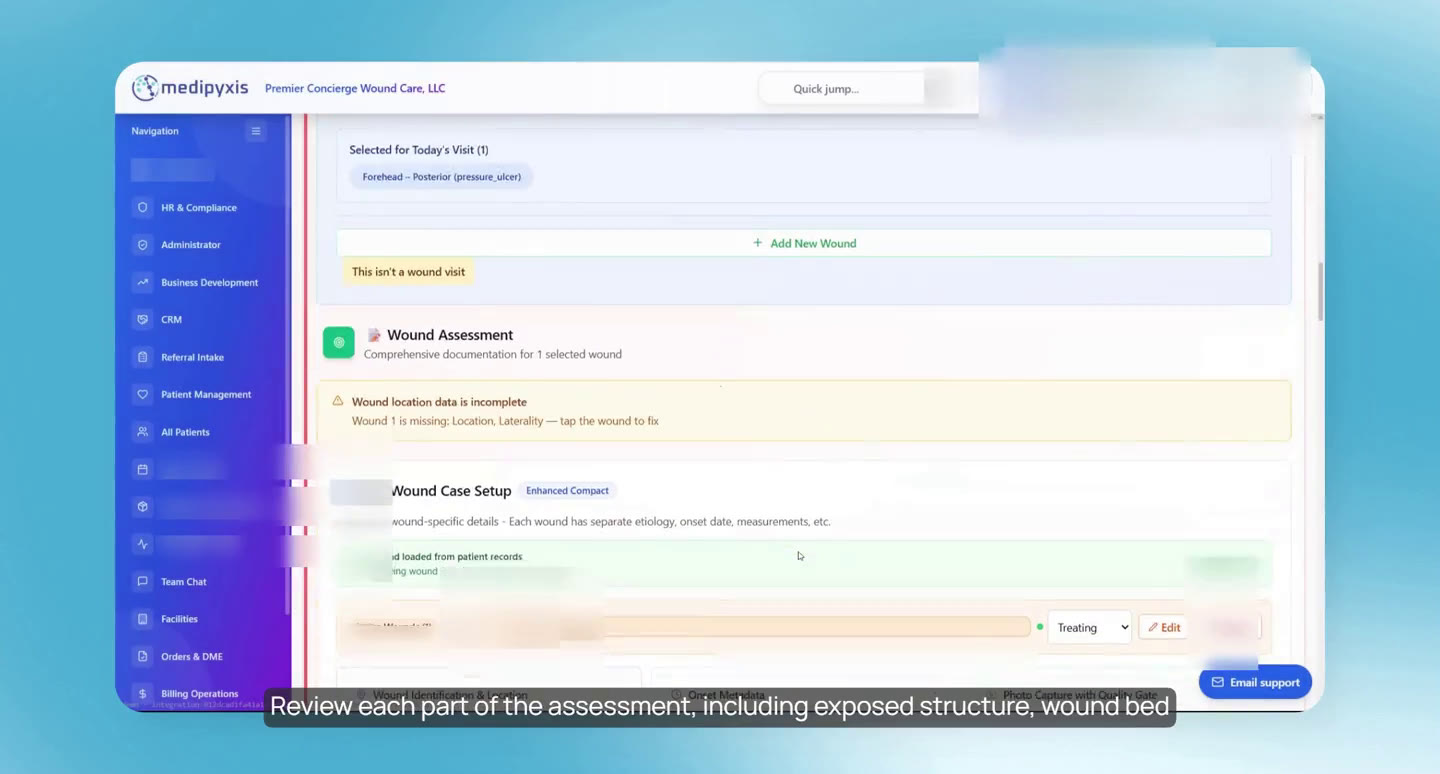
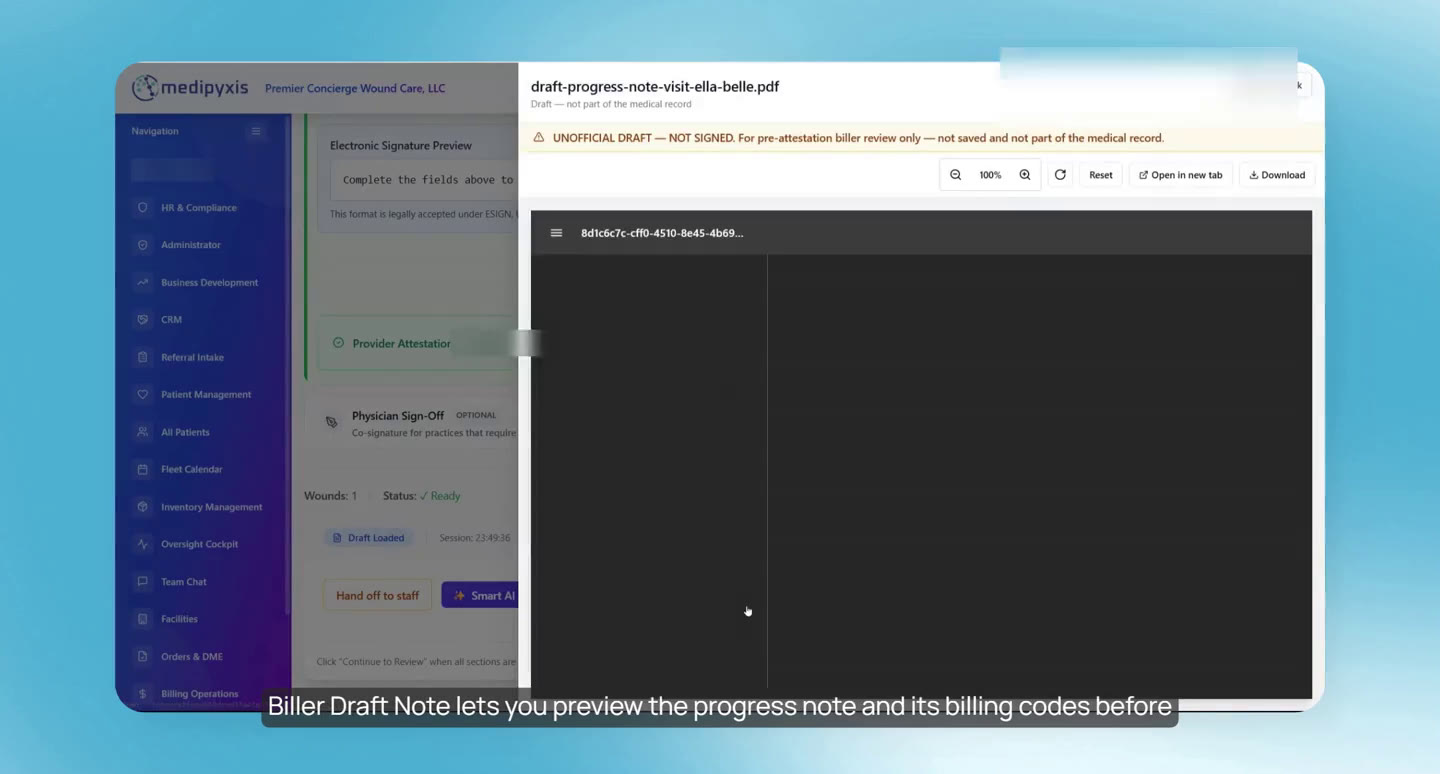
The provider starts the visit from Patient Management, the patient chart or Appointment Management. The visit wizard goes section by section; this video follows the wound assessment (location, classification, measurements, wound bed, status and comparison with the prior visit). Missing items raise a warning that does not block. Then the attestation, the Biller Draft Note preview, a review of open items, the progress note, and sign and lock. The signed note can be faxed or downloaded as a PDF.
Why it matters: One guided path from opening the visit to a signed, locked note, with gaps shown before signing.
Transcript of this video
- 0:02 This video shows how to complete a clinical visit in Medipyxis.
- 0:07 In Patient Management, providers see their patients and the day's appointments, with the distance between patients where available. To start a visit, click View Patient Details.
- 0:21 This opens the patient chart. Select Start to begin documenting the appointment.
- 0:27 You can also start from the chart: open All Patients, search for the patient, select View, open the wound cockpit, choose Pick a Visit and open the visit.
- 0:47 Or use Appointment Management: find the appointment and select Open Visit.
- 0:58 The visit wizard guides you through the full clinical documentation. This video focuses on the wound assessment.
- 1:05 Open Wound Assessment. To document a new wound, select Add New Wound, enter the location and classification, and complete the assessment.
- 1:18 Review each part: exposed structures, wound bed composition, wound status and, when there is one, comparison with the prior visit.
- 1:29 If information is missing, a warning appears. Complete the documentation where appropriate. The warning does not stop you: to continue anyway, click Mark as Complete.
- 1:54 Complete the required provider attestation, review the visit and make any final edits.
- 2:05 Biller Draft Note previews the progress note and its billing codes before signing.
- 2:14 Continue to Review lists any open visit or documentation items. Resolve each one where possible, then continue.
- 2:26 The wound care progress note is shown. Review it, and continue when it is correct.
- 2:37 Sign and lock the visit.
- 2:43 You can then fax the note, download the PDF, download the clinical note without the billing sections, regenerate the PDF or view it.
How do I set up vendors and order forms for DME and lab orders?
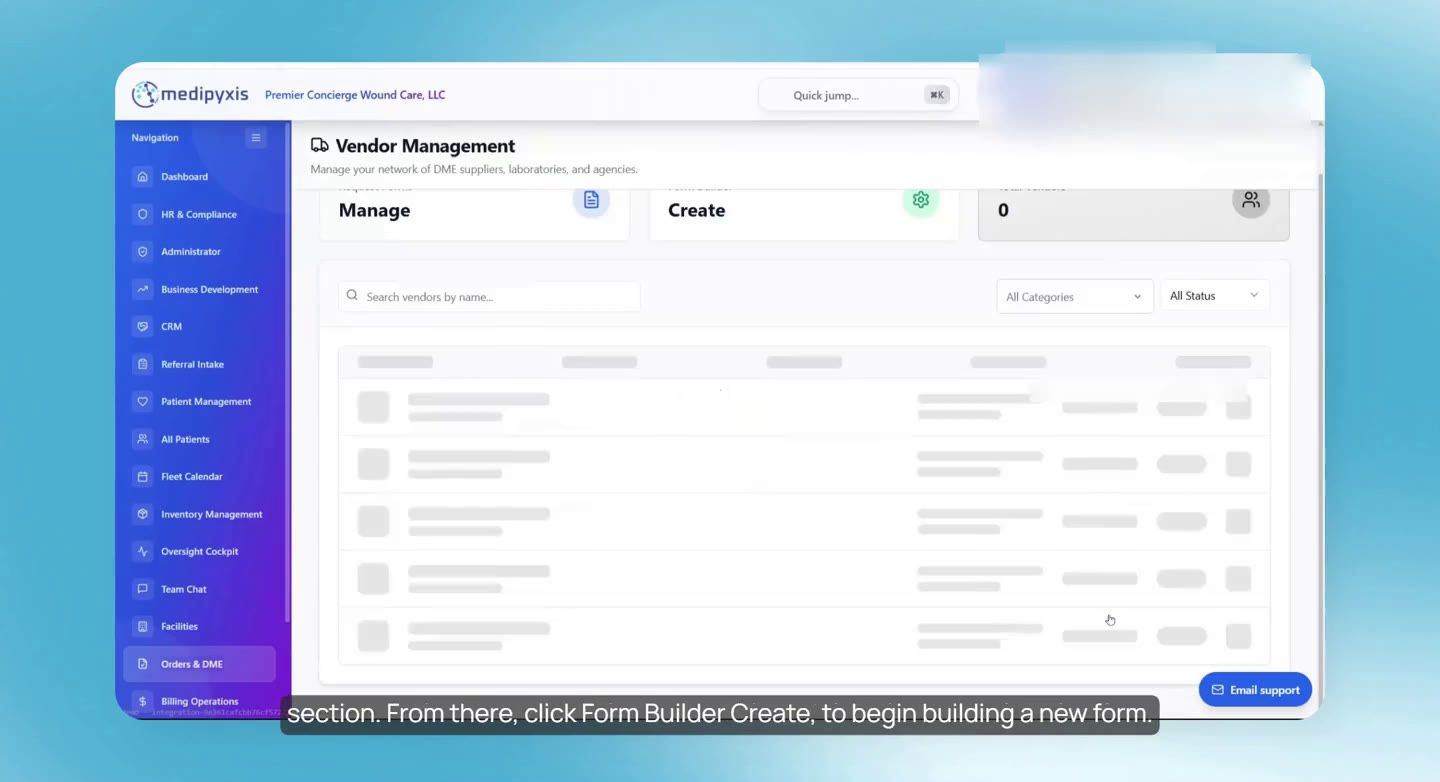
Vendors are added in CRM under Vendors. Then, in Orders and DME, Manage Vendors and Form Builder create an order form, starting from a template, linked to that vendor. Once saved, the form is available when providers create orders from the patient chart, and every order's status shows in Orders and DME by category.
Why it matters: Each vendor gets its own order form once, and every order after that is filled in the same way.
Transcript of this video
- 0:02 This video shows how CRM vendors connect to patient order forms and where to track submitted requests.
- 0:10 Start by adding vendors to CRM. Each vendor can then have its own order form.
- 0:20 Select Add Vendor and enter the vendor's information. The CRM vendor list holds the organizations your practice works with. Add the vendor before linking it to an order form.
- 0:38 Then open Orders and DME, select Manage Vendors in the Vendor Network section, and click Form Builder, Create, to build a new form.
- 0:51 Authorized staff can start from an existing template to prepare the vendor's order form.
- 1:04 Adjust the form, link it to the right vendor and save the template.
- 1:14 The form is now available when creating patient orders. Providers create orders from the patient chart.
- 1:23 Order details and status updates appear in Orders and DME, under the right category: medical equipment, lab tests, imaging, specialist referrals and home health.
- 1:42 There you can see the status and details of each order.
How do I create a home health or DME order for a patient?
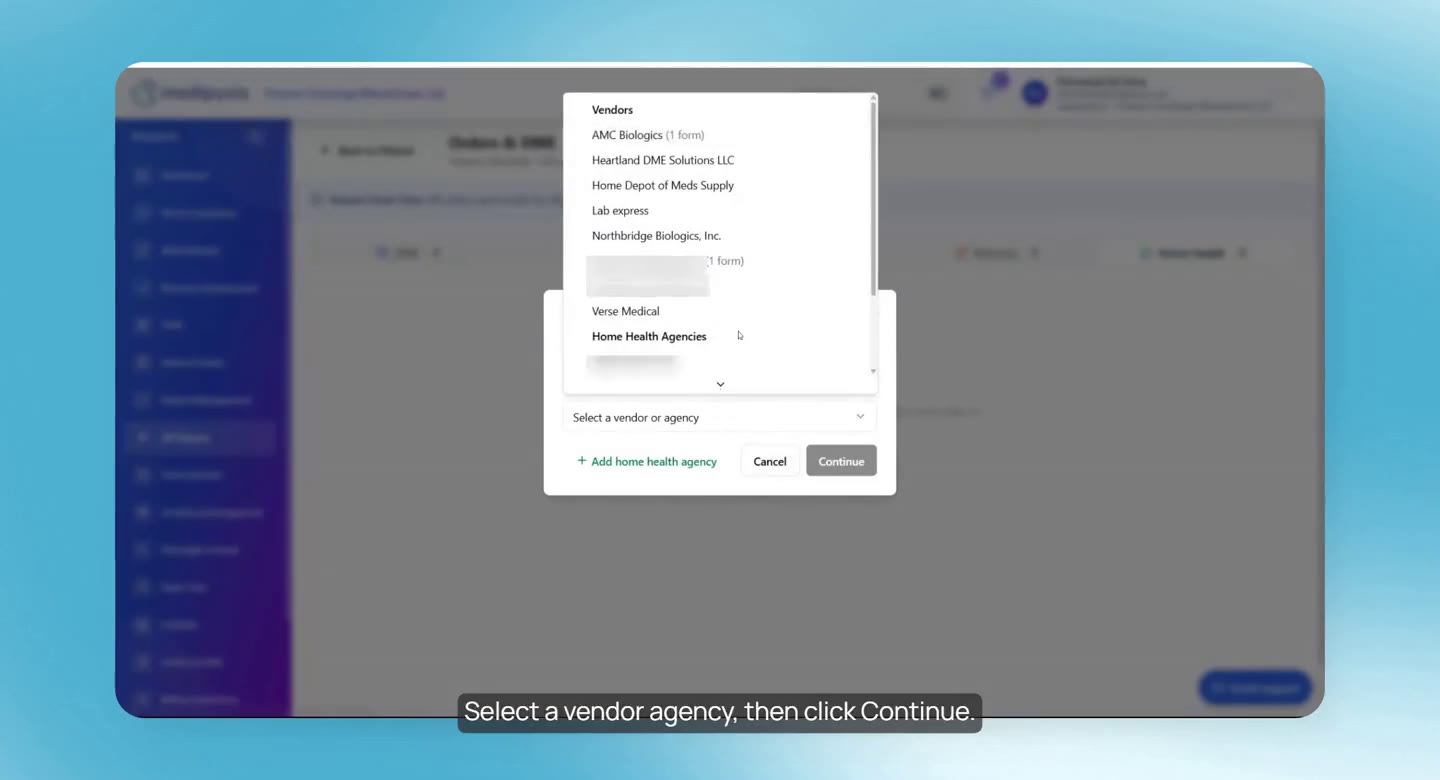
Orders can be made during a visit in the wizard or from the Orders and DME tab of the patient's chart; this video uses the chart. A home health order: choose the vendor agency, fill in its custom form, check the vendor's contact details and submit, or send it by email or fax from the form. Orders across all patients are tracked in Orders and DME, by category, with a status for each.
Why it matters: Orders go out on the vendor's own form, and their status is visible to the whole team.
Transcript of this video
- 0:02 This video walks through creating orders and DME requests.
- 0:07 An order can be created during an appointment in the visit wizard, or directly from Orders and DME in the patient's profile. Both follow the same steps; this video uses the profile.
- 0:26 Select All Patients, then the patient. In the profile, open Orders and DME and choose the category. This example is a home health order.
- 0:44 Select Home Health, then Create Home Health Order.
- 0:51 Select a vendor agency, then click Continue.
- 0:59 Choose the custom form, complete the required order information and check the linked vendor's contact details. Click Submit to send the order, or send it by email or fax from the form.
- 1:17 To review orders across patients, open Orders and DME and select the category.
- 1:35 Each order's status is shown, and View opens its details.
- 1:47 This helps the team follow every order created for patients.
How do I manage provider schedules and routes in Medipyxis?
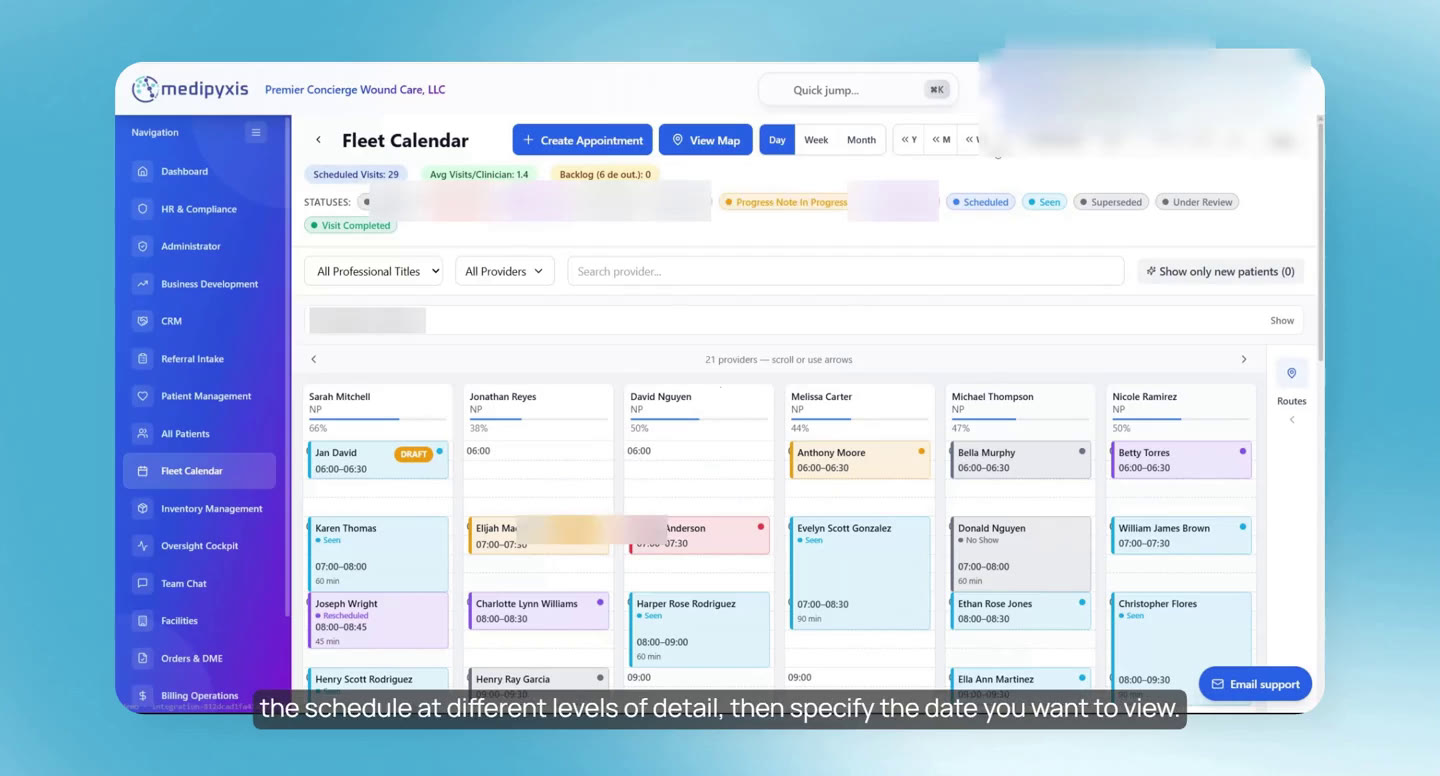
Fleet Calendar shows every provider's appointments by day, week or month, with a provider filter. Create Appointment, or a click on an open slot, books a visit. Appointments are moved by drag and drop or with Edit Appointment. Colors show whether a patient was seen, canceled, rescheduled or not seen, or whether the note is in progress; Mark Outcome records a cancellation. View Map shows each provider's route for the day.
Why it matters: Schedulers see the whole team's day, change it in place, and see where everyone is driving.
Transcript of this video
- 0:02 This video covers Fleet Calendar: reviewing provider schedules, creating and updating appointments, and viewing daily routes on the map.
- 0:11 Open Fleet Calendar to see and manage appointments across your providers. It is a scheduling module for administrators, and authorized clinicians can use it too.
- 0:25 At the top, choose a daily, weekly or monthly view, then the date.
- 0:37 Use the provider filter to focus on one provider, or select all providers to see the whole schedule.
- 0:48 To schedule an appointment, click Create Appointment, or click an open time slot in a provider's row.
- 1:02 Select the patient and complete the details: visit type, place of service, provider, date and time. Save to add it to the calendar.
- 1:24 To reschedule, drag the appointment card to a new time. Or open the card and use Edit Appointment.
- 2:01 Colors show each visit's progress: seen, canceled, rescheduled, not seen, or progress note under way.
- 2:12 To cancel, open the appointment and use Mark Outcome to record the cancellation. The calendar updates.
- 2:32 Select View Map to see providers' daily routes and appointment locations. Choose the date and, where available, filter by provider.
- 2:49 Use these views to coordinate schedules and follow the team's day.
What can practice leaders see in the Medipyxis Oversight Cockpit?
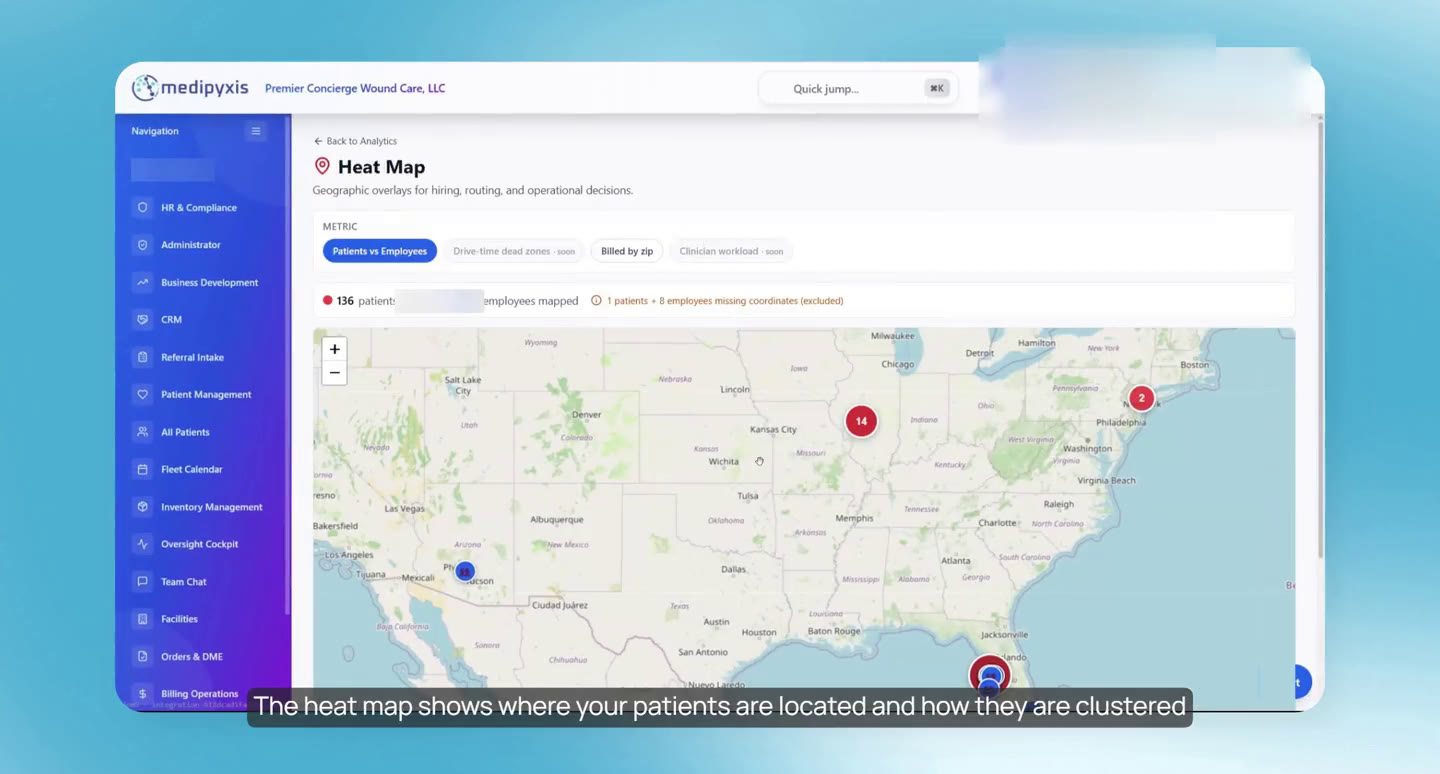
The Oversight Cockpit holds the practice's analytics: a heat map of where patients live, Operational KPIs for visits, appointments, cancellations and reschedules, referral sources, the mix of procedure codes, and the Clinician Workload Balancer for each provider's capacity.
Why it matters: Leaders see demand, activity, referral sources and workload in one place, from the same data the team works in.
Transcript of this video
- 0:02 This video covers the Oversight Cockpit: patient locations, appointment activity, referral sources and billing-related metrics.
- 0:12 Open the Oversight Cockpit to see the practice's analytics and key performance indicators.
- 0:25 The heat map shows where patients are located and how they cluster in your service area, to help judge provider coverage.
- 0:50 Operational KPIs show activity across visits, appointments, outcomes, referral sources and billing-related metrics, including how many patients were seen in the period.
- 1:07 Canceled and rescheduled visit counts show schedule changes recorded in the scheduling workflow. Keep appointment outcomes up to date in Fleet Calendar so the dashboard is accurate.
- 1:26 Referral source metrics show which practices or organizations refer patients, and how many.
- 1:45 The CPT and procedure code section shows which codes were documented, and how often, in the period.
- 1:55 The Clinician Workload Balancer shows each provider's workload and capacity over the period you choose.
How does my team message each other about a patient in Medipyxis?
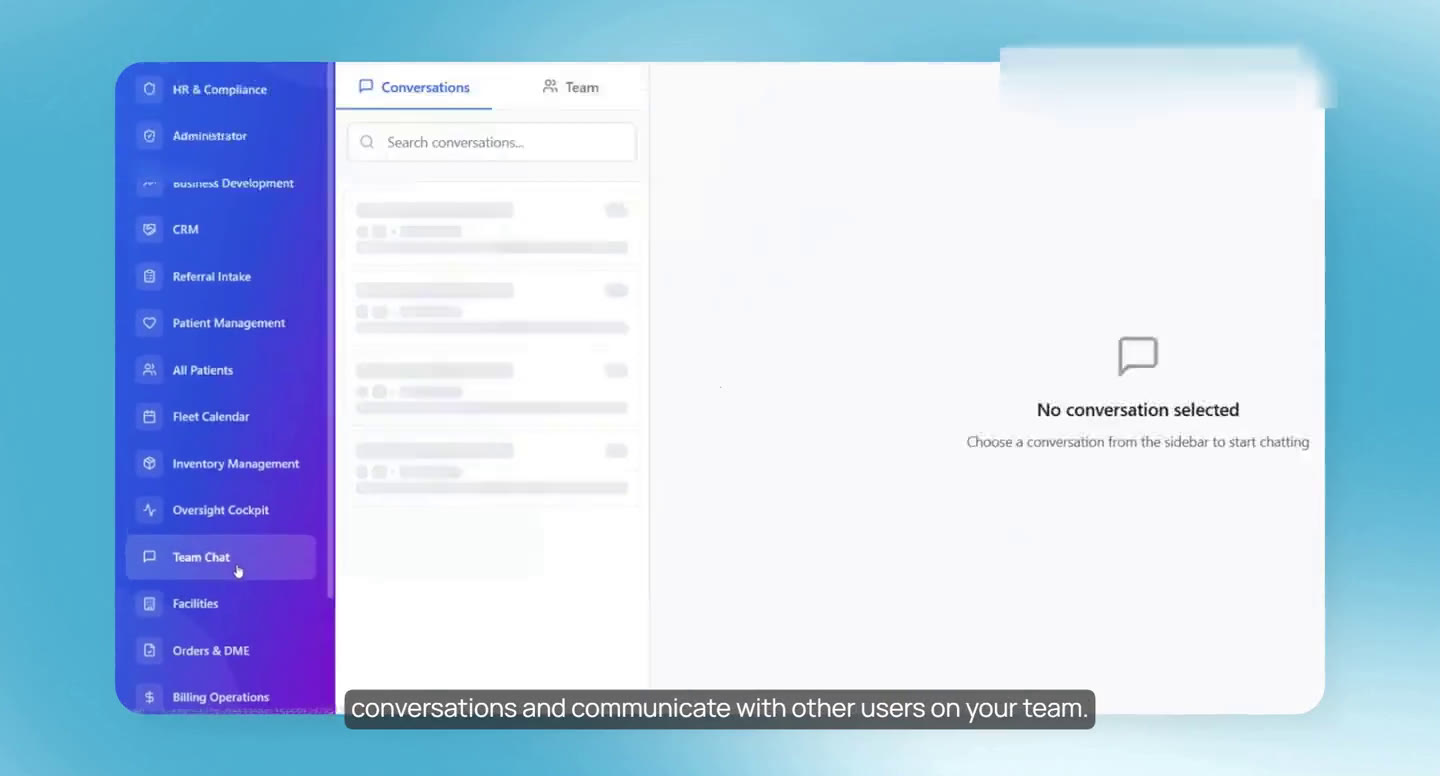
Team Chat holds internal conversations: New Conversation, pick a user, send. Patient chats open from a patient's card in Referral Intake or from the Team Chat tab of the patient profile, and stay tied to that patient. Access follows each user's permissions. Chats are for coordination and are not part of the clinical record.
Why it matters: Questions about a patient stay attached to that patient, where the next person can find them.
Transcript of this video
- 0:02 This video covers team communication: starting an internal conversation and using patient chats during referral intake and patient care.
- 0:11 Open Team Chat to see your conversations and message other users on your team.
- 0:20 To start a conversation, select New Conversation in the upper-right corner. Enter a title, choose the user and click Create Conversation, then type and send your message.
- 0:44 Chat is also available elsewhere. For a patient conversation, go to Referral Intake, select the patient card and choose Chat.
- 1:06 Access depends on each user's permissions for the patient and the module.
- 1:10 You can also open Team Chat from the patient profile: All Patients, select the patient, then Team Chat next to Clinical Overview.
- 1:28 Messages there are tied to that patient, so the team knows which patient the conversation is about.
- 1:45 Patient conversations can be picked up again from the Messages section or from Team Chat.
- 1:59 These conversations are for internal coordination and do not become part of the clinical chart.
Questions and answers about the Medipyxis training series
Where do I start if I am new to Medipyxis?
Start with part 1, the platform overview. It shows the sidebar, the facility switcher and the dashboard. Then follow the parts in order: a referral comes in (part 4), is assigned and booked (part 5), and the provider documents and signs the visit (part 6).
How does a new patient get into Medipyxis?
Through Referral Intake: Add New Referral, fill in the patient's details, the referring provider and insurance, check any duplicate alert, and click Create Patient. The referral then moves through New Referrals to Ready for Assignment.
How is a provider chosen for a patient?
Assign recommends providers using distance to the patient, availability and efficiency. In the video, the intake coordinator reviews the recommendation, selects the provider and confirms the assignment.
Can a provider finish a visit with missing documentation?
Yes. Missing items raise a warning, and the provider can complete them or click Mark as Complete to continue. Before signing, Continue to Review lists anything still open so it can be resolved.
Can I see the note and codes before signing?
Yes. Biller Draft Note previews the progress note and its billing codes before the visit is signed and locked.
How do orders reach the vendor?
Each vendor has its own order form, set up once in Orders and DME. The provider fills it in for the patient and submits it, or sends it by email or fax from the form. Its status is tracked in Orders and DME.
Are Team Chat messages part of the medical record?
No. They are for internal coordination and do not become part of the clinical chart.
Do the videos have sound?
No. Each video has the narration as on-screen captions, and the full text is under each video.