Deactivate a facility, archive a patient, and disable a user
Medipyxis distinguishes between deactivation (temporarily stopping operations) and archiving (long-term record retention). This page covers all three offboarding workflows and the correct order of operations for each.
Before you start
- You need
practice_adminorsuper_adminrole. - Archiving a patient is irreversible from the UI; only Medipyxis support can unarchive.
- Never delete a patient record — archive instead (per platform policy MED-1692).
- Before deactivating a facility or disabling a user, reassign all open work first.
Archive a patient (not delete)
Per MED-1692, patient records must be archived — not deleted — to preserve the audit trail and comply with HIPAA's six-year record retention requirement.
- Navigate to Patient Management and open the patient's record.
- Click the Actions menu (three-dot icon at top-right of the patient card).
- Select Archive Patient.
- Enter the reason for archiving (required field — choose from the dropdown:
Deceased,No Longer a Patient,Duplicate Record,Other). - Click Confirm Archive.
Effect of archiving:
- The patient record moves to an Archived filter state; they no longer appear in active patient lists or search results.
- All historical visits, claims, and documents are retained and accessible to super_admin and practice_admin via the Archived filter.
- Open referrals and pending claims associated with the patient are flagged for manual resolution before archiving completes. The system will not archive a patient with an unresolved claim in Pending or Needs Info status.
Deactivate a facility
Deactivating a facility removes it from active scheduling, referral routing, and billing workflows. It does not delete any data.
Before deactivating: 1. Reassign all open referrals to an active facility (Referral Intake → filter by facility → bulk reassign). 2. Resolve or transfer all open claims (Billing → Claims → filter by facility). 3. Notify all users assigned to this facility that they will lose access to facility-scoped screens.
Deactivation steps: 1. Navigate to Facilities in the sidebar. 2. Locate the facility row and confirm it shows Active in the STATUS column. 3. Click Actions → Deactivate. 4. Read the confirmation modal — it lists the count of open referrals and pending claims associated with the facility. 5. If the counts are zero (or you have confirmed resolution), click Confirm Deactivate.
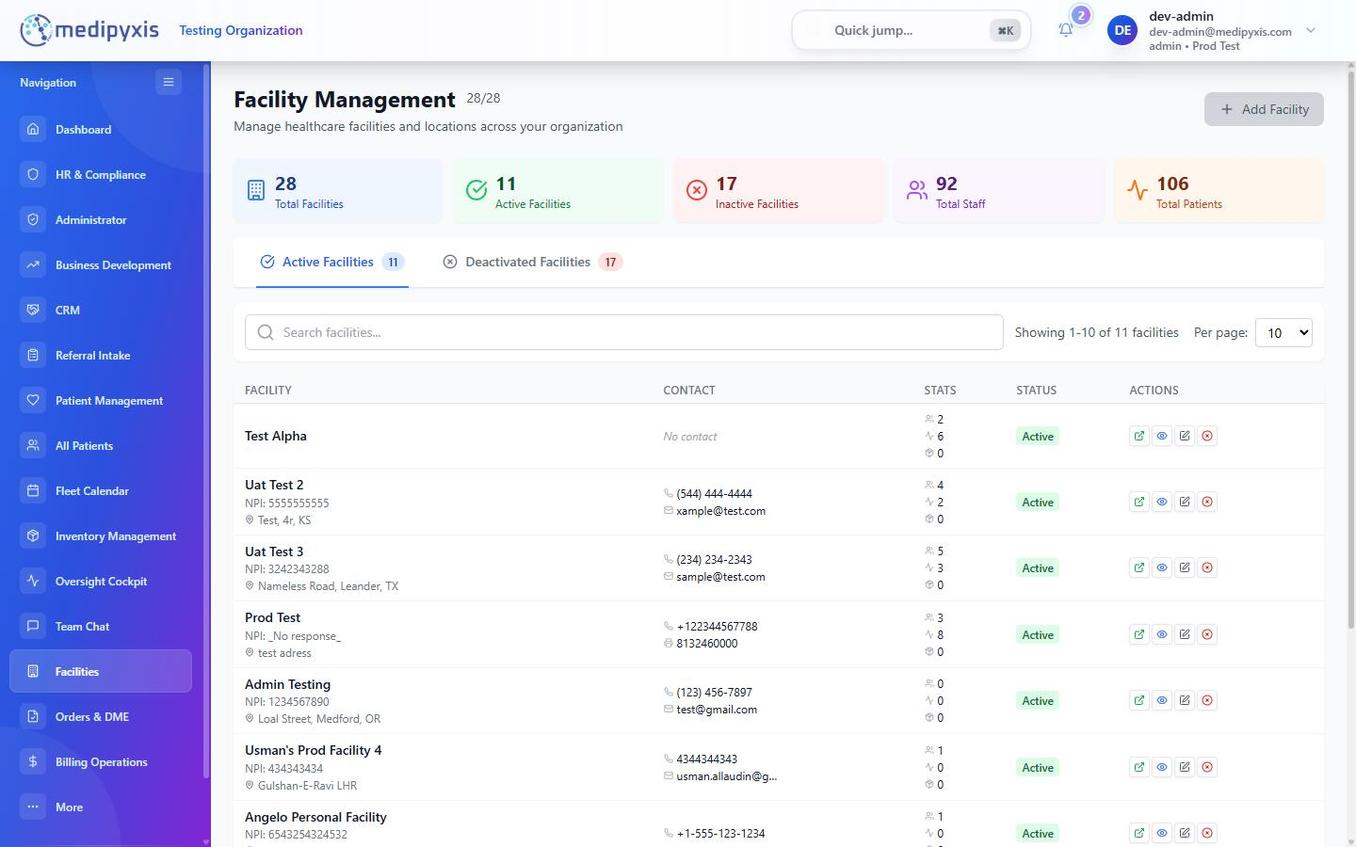 After deactivation, the facility's STATUS badge changes from Active (green) to Inactive (gray). The facility remains visible in the list for historical reference.
Reactivating: Click Actions → Activate at any time to restore the facility to active status. Users previously assigned to it regain access.
Disable a user
Disabling a user prevents them from logging in without deleting their account or their activity history.
Before disabling: 1. Reassign any open referrals or claims the user owns: - Referral Intake → filter Assigned To by the departing user → bulk reassign. - Billing → Work Queue → filter Assignee → reassign. 2. Remove the user from any active Fleet Calendar routes scheduled in the future.
Disable steps: 1. Navigate to HR & Compliance → Facility Users. 2. Find the user by name or email. 3. Click Edit → toggle Account Status to Inactive → click Save. 4. The user's active session is terminated within 60 seconds.
Effect:
- The user cannot log in.
- Their historical audit log entries, visit notes, and claim signatures are preserved unchanged.
- Their name remains in the Assigned Clinician dropdowns so that historical records remain accurate; they appear as (Inactive) to indicate they cannot accept new work.
Summary of offboarding actions
| Scenario | Correct action | Where |
|---|---|---|
| Patient deceased or no longer active | Archive (not delete) | Patient Management → Actions |
| Facility closing permanently | Deactivate | Facilities → Actions |
| Employee leaving organization | Disable (set Inactive) | HR & Compliance → Facility Users |
| Duplicate patient record | Merge, then archive the source | Patient Management → Actions → Merge |