Configure organization roles and permissions
The Organization Role Config screen is where you control what each role can see and do across your Medipyxis organization.
Before you start
- Access requires the
superadminrole, or a facility-admin role (admin,clinical_manager, orbd_manager) for at least one facility. - Configuration is per organization — you select the organization at the top of the screen.
- Changes take effect on an affected user's next page load (the configuration is cached).
Open the screen
Navigate to /administrator → Organization Role Config (/administrator/org-role-config). The /administrator cockpit link appears in the sidebar for admin roles, outside the facility-scoped navigation.
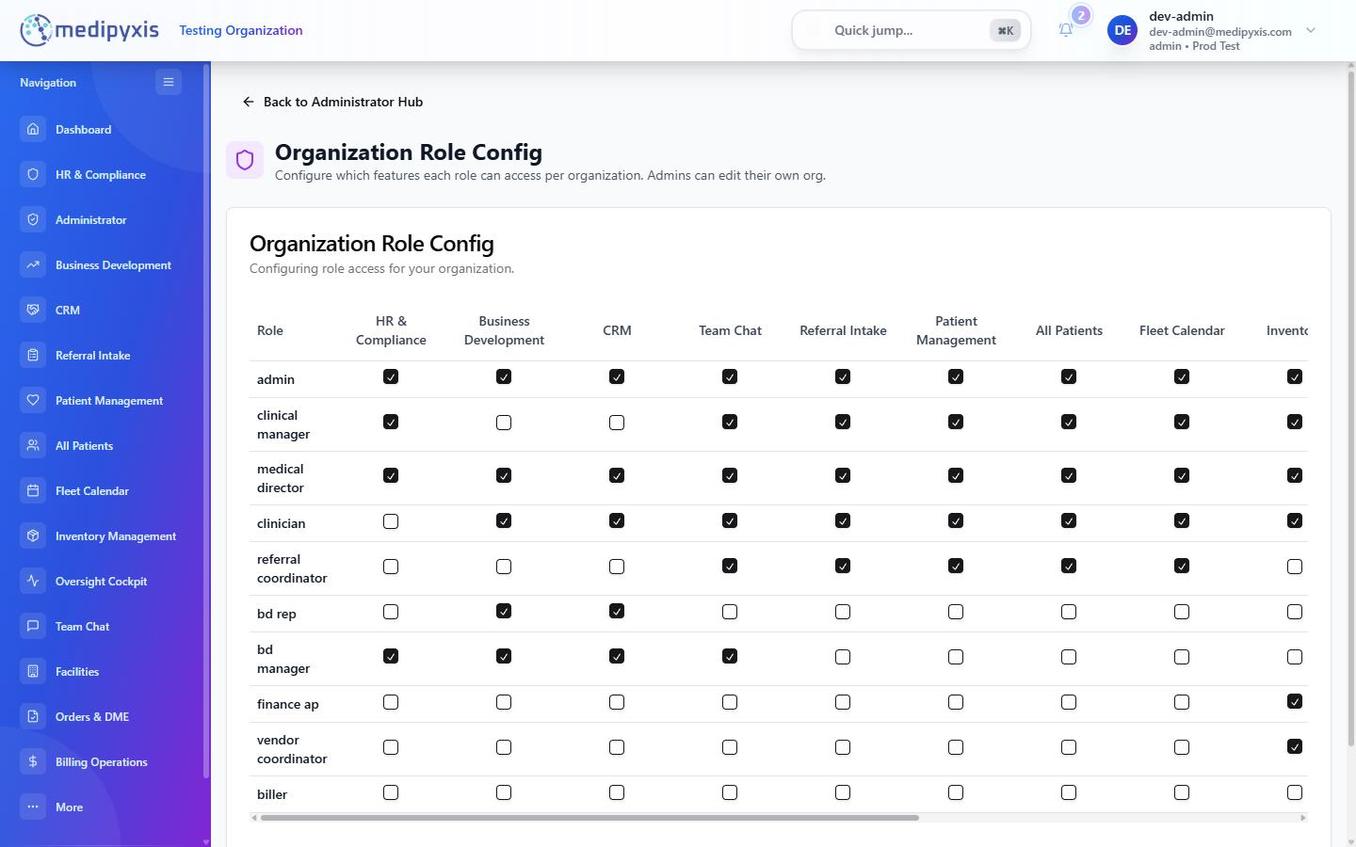 The Organization Role Config matrix. Rows are roles; columns are features. A checked box means the role has access to that feature.
Seeded roles
Medipyxis ships ten built-in roles. They cover the most common job functions and cannot be deleted, but their permissions can be adjusted.
| Role | Primary function |
|---|---|
admin |
Full organization access; manages all facilities and users |
clinical_manager |
Oversees clinical staff; access to Fleet Calendar, Visit Wizard, Oversight Cockpit |
medical_director |
Clinical sign-off; access to LCD Navigator™ audit and reporting |
clinician |
Visit documentation; access to Visit Wizard, patient records, orders |
referral_coordinator |
Manages Referral Intake kanban and Fax Review Queue |
bd_rep |
Business Development; CRM, BD Dashboard, limited patient view |
bd_manager |
BD rep management; CRM, BD Dashboard, Oversight Cockpit BD metrics |
finance_ap |
Accounts Payable; Billing (read), Inventory Accounts Payable |
vendor_coordinator |
Vendor-facing inventory management; Product Catalog and inventory |
biller |
Billing access; Claims, Denials, Payments, and the facility Charge Master |
superadmin and customersupport (Medipyxis-internal) sit above these organization roles and are not configured here.
Feature permission matrix
The matrix uses checkboxes at the intersection of each role and feature. A checked box means the role can access that feature.
| Feature | Typical roles with access |
|---|---|
| Dashboard | All roles |
| Referral Intake | referral_coordinator, clinician, clinical_manager, admin |
| Patient Management | clinician, clinical_manager, medical_director, admin |
| Visit Wizard / EHR | clinician, clinical_manager, medical_director |
| Fleet Calendar | clinician, clinical_manager, admin |
| Inventory | vendor_coordinator, finance_ap, clinical_manager, admin |
| Orders & DME | clinician, clinical_manager |
| Billing | biller, finance_ap, admin |
| CRM | bd_rep, bd_manager, admin |
| Business Development | bd_rep, bd_manager, admin |
| Oversight Cockpit | clinical_manager, medical_director, bd_manager, admin |
| HR & Compliance | admin, clinical_manager |
| Administrator | superadmin, admin |
| Team Chat | All roles |
Set a permission
- Open Organization Role Config and select the organization from the dropdown at the top.
- Find the role row and feature column you want to change.
- Check or uncheck the box.
- Click Save. A confirmation toast appears; the change applies to affected users on their next page load.
Billing roles are facility-scoped
Billing roles (biller and related) are scoped to a specific facility — they cannot hold a global (all-facility) wildcard. Assign the billing role at the facility where the user works. The biller role can view and edit that facility's Charge Master; creating and editing claim codes and claim status remains governed by the same role configuration.
Worked example
Scenario: give referral_coordinator visibility into Billing so coordinators can see claim status without creating or editing claims.
- Open Organization Role Config and select the organization.
- Find the
referral_coordinatorrow and the Billing column and check the box. - Click Save.
- Notify affected users that the Billing link is now visible in their sidebar. If you need finer-grained (read-only) billing access than the feature toggle provides, contact Medipyxis support.