Tour of your dashboard
Your dashboard is the launchpad for everything you do in Medipyxis. It's personalized by role — a clinician sees different widgets than a practice admin.
Platform overview and navigation tour — orient yourself to where things live in Medipyxis before diving in.
Anatomy of the dashboard
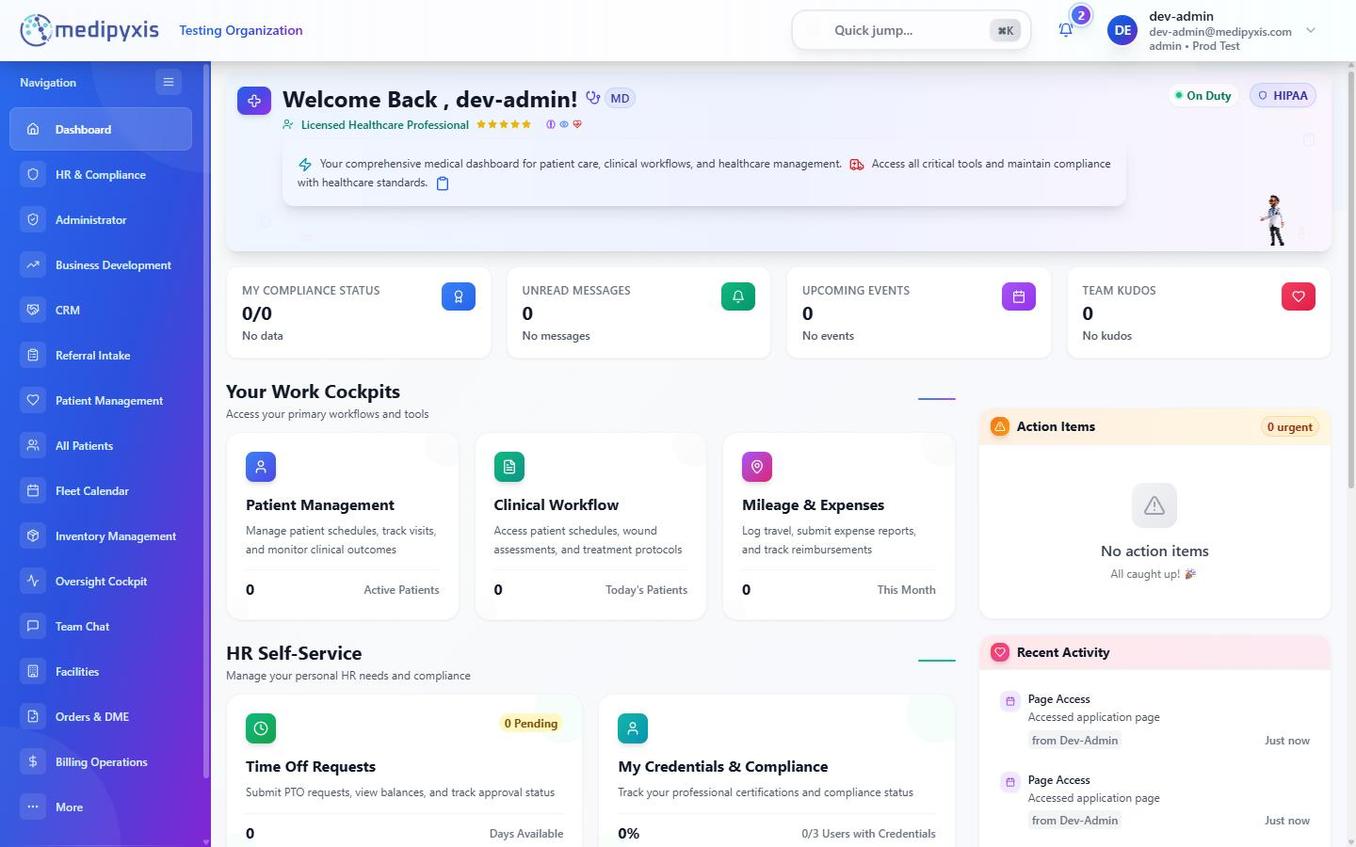 The home dashboard with four KPI tiles, Work Cockpits, HR Self-Service, and the Action Items + Recent Activity column.
1. Welcome banner
Your name, role badge ("Licensed Healthcare Professional"), and duty status (On Duty / Off Duty) live here. The green HIPAA badge confirms your session is HIPAA-compliant.
2. KPI tiles
Four live tiles at a glance:
| Tile | What it counts |
|---|---|
| My Compliance Status | Your completed / total required credentials |
| Unread Messages | Unread Team Chat and patient-level messages |
| Upcoming Events | Visits, meetings, trainings in the next 7 days |
| Team Kudos | Recognition received this month |
3. Your Work Cockpits
Role-specific shortcuts to your primary working surfaces. For clinicians: Patient Management, Clinical Workflow, Mileage & Expenses. For admins: replace these with Oversight Cockpit and HR & Compliance.
4. HR Self-Service
Two always-visible cards: Time Off Requests (PTO balance and submit button) and My Credentials & Compliance (% complete + "Users with Credentials" count).
5. Action Items & Recent Activity (right column)
- Action Items — tasks assigned to you: pending signatures, credential renewals, stuck visits, unsent faxes. A red "urgent" counter appears if anything needs immediate attention.
- Recent Activity — the last 20 things you did in Medipyxis.
6. Electronic Prescribing Setup
At the bottom of the dashboard, the Electronic Prescribing Setup card surfaces the status of your DoseSpot ePrescribing integration:
- If the connection is healthy, a green pill confirms credentials and the EPCS (controlled substance) status.
- If credentials are missing or expired, the card shows a yellow or red state with a Configure button that opens DoseSpot inside an in-app frame.
- Click Open DoseSpot to launch the prescribing console for the patient context you're working on.
For the end-to-end prescribing flow, see the eRx workflow guide.
7. Knowledge Base & Resources
The final section of the dashboard pulls together quick links to onboarding material, release notes, and admin references. Each tile opens the matching destination inside this help center (for example, Welcome to Medipyxis, Release notes, Module reference). New users should start here on day one.
Tips
⌘K / Ctrl+K from anywhere to jump to a patient, visit, or page without using the sidebar.