AR Aging and Reports Center reference
Reference for the AR aging buckets used across the Billing module and the reports available in the Reports Center.
AR Aging buckets
Aging buckets measure the number of days elapsed since the date of service for unpaid claims. They appear in the Account Receivable report and related AR views. (Note: the Work Queue's Claim Age filter uses its own buckets measured from the claim's submission date — Not Submitted, 0–30, 31–60, 61–90, and 90+.)
| Aging Bucket | Days Since Date of Service | Typical Priority |
|---|---|---|
| 0–30 | 0 to 30 days | Monitor — within standard payer processing time |
| 31–60 | 31 to 60 days | Review — follow up if no ERA received |
| 61–90 | 61 to 90 days | Escalate — contact payer; most contracts have 90-day timely-filing limits |
| 91–120 | 91 to 120 days | High priority — approaching or past many timely-filing limits |
| 120+ | 121+ days | Critical — verify timely-filing status before submitting; write-off review may be required |
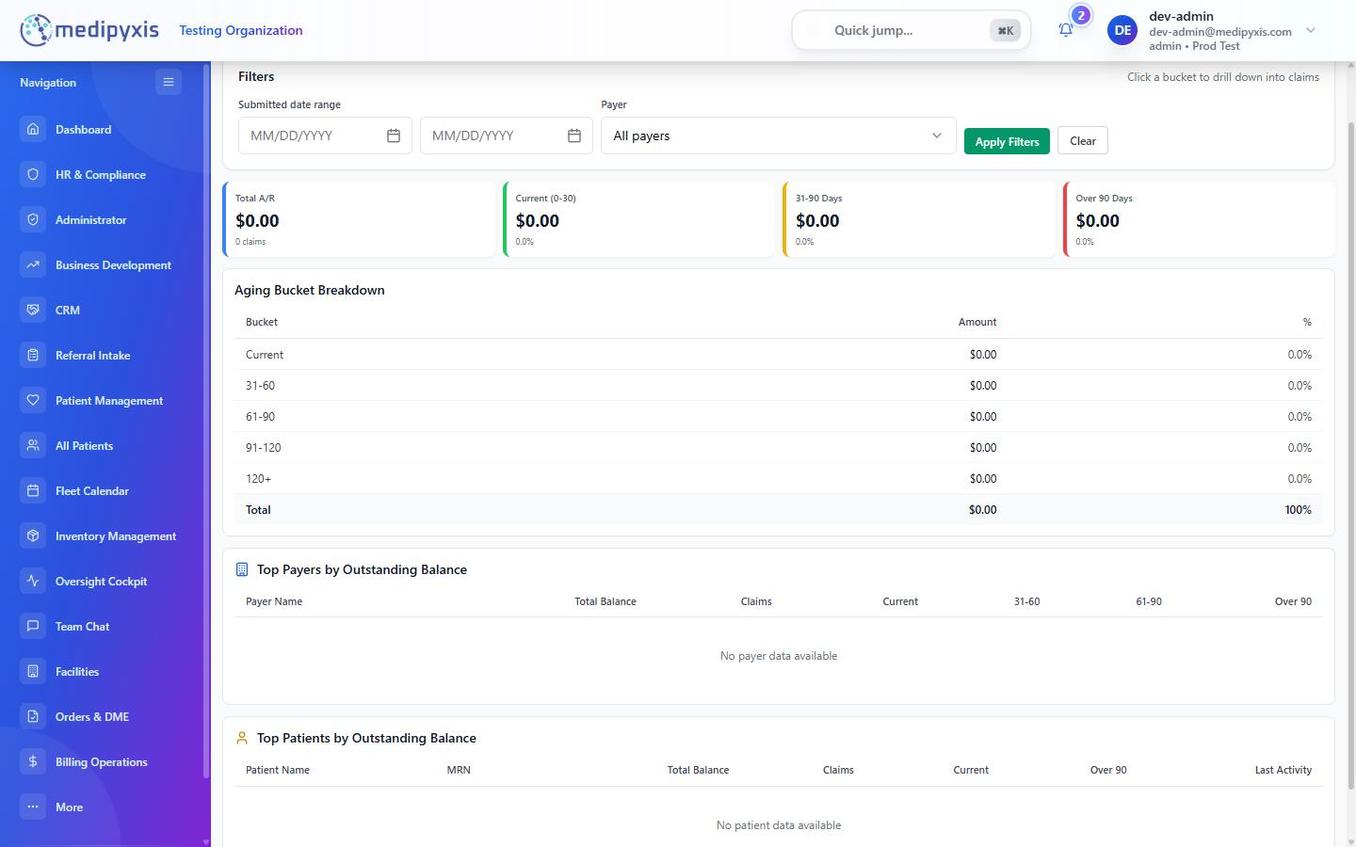 The AR Aging view. Each column represents one aging bucket; rows break down the outstanding balance by payer. Use this view to identify which payers have the highest concentration of aged balances.
Reports Center
The Reports Center generates operational billing reports. Navigate to /facility/{facility_uuid}/billing/reports-center.
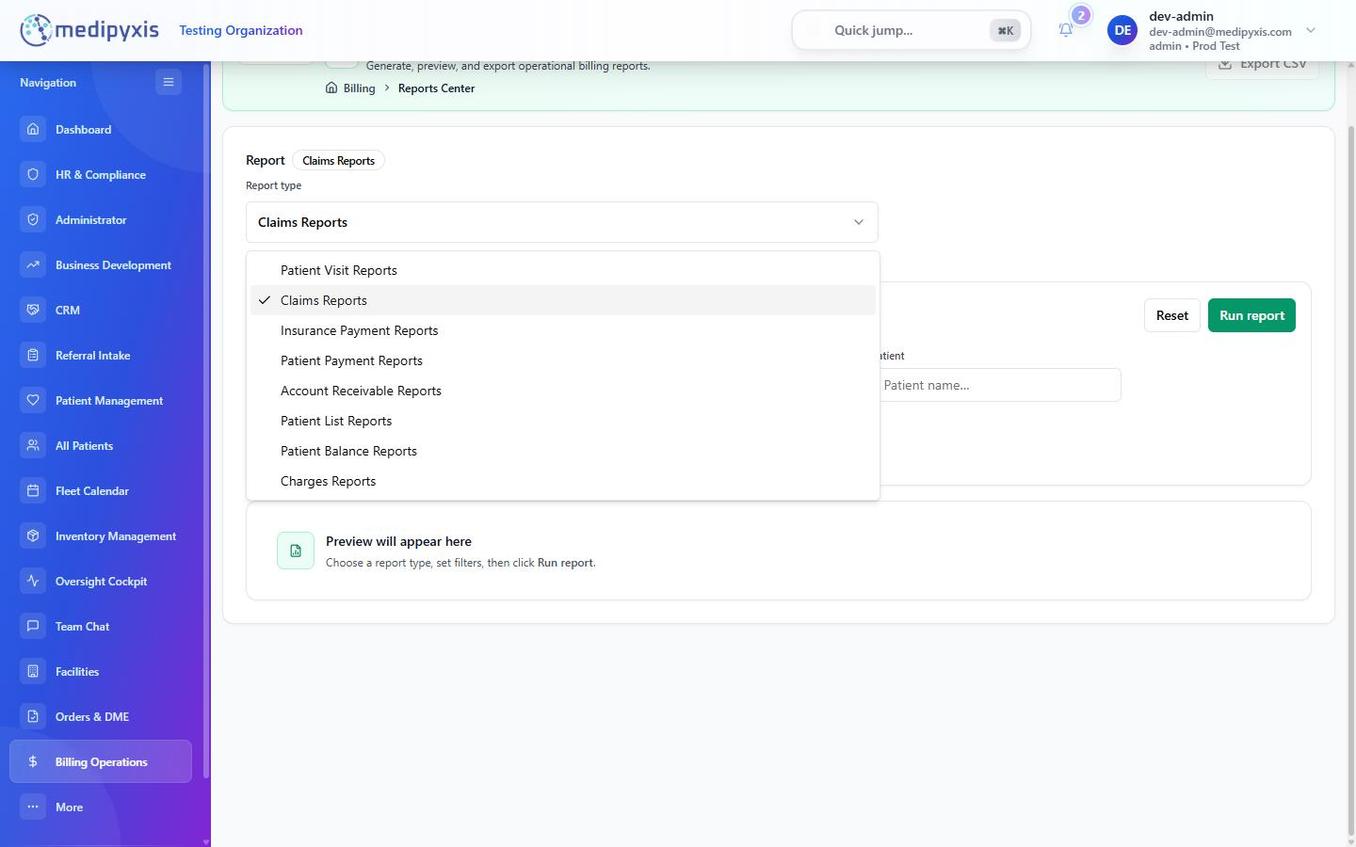 The Reports Center. Choose a report type, set filters, run the report to preview it, then export to CSV.
Available report types
| Report | What it covers |
|---|---|
| Patient Visit Reports | Visits/encounters over a period. |
| Claims Reports | Claims and their status across the period. |
| Insurance Payment Reports | Payments received from payers. |
| Patient Payment Reports | Payments received from patients. |
| Account Receivable Reports | Outstanding balances (AR) by payer/period. |
| Patient List Reports | Patient roster for the selected criteria. |
| Patient Balance Reports | Outstanding patient balances. |
| Charges Reports | Charges billed over the period. |
Running a report
- Choose a report type from the selector.
- Set the filters (date range, payer, and other criteria in the filters panel).
- Click Run report. The results preview in a table below.
- Export to CSV to download the report for external distribution.
Reports run on demand against current data — there is no overnight batch, so a report reflects the data at the moment you run it.
Related
Auto-rendered from related: in frontmatter.