Post and reconcile ERAs from Stedi
Review inbound Electronic Remittance Advice (ERA / 835) files delivered by Stedi, confirm auto-posting results, and reconcile unmatched payments to their corresponding claims.
Before you start
- Claims have been submitted through Stedi (status Submitted).
- Stedi credentials and the inbound webhook are configured — see Billing Setup.
- You have the
biller,admin, orsuperadminrole.
How ERA auto-posting works
When a payer issues an 835 ERA, Stedi delivers it to Medipyxis automatically over a webhook — there is no sync button to press and no polling step. Medipyxis lands the ERA, matches each payment line to an existing claim using the claim number and date of service, and posts the matched payments without manual intervention. Successfully matched and posted ERAs advance the corresponding claim to Paid status.
ERA lines that cannot be automatically matched — for example, because the payer's claim number differs from the Medipyxis claim number — appear in the Payments (ERA) tab with a status of Unmatched and require manual reconciliation.
Steps — review auto-posted ERAs
- Open the Payments (ERA) tab. Navigate to
/facility/{facility_uuid}/billingand click Payments (ERA).
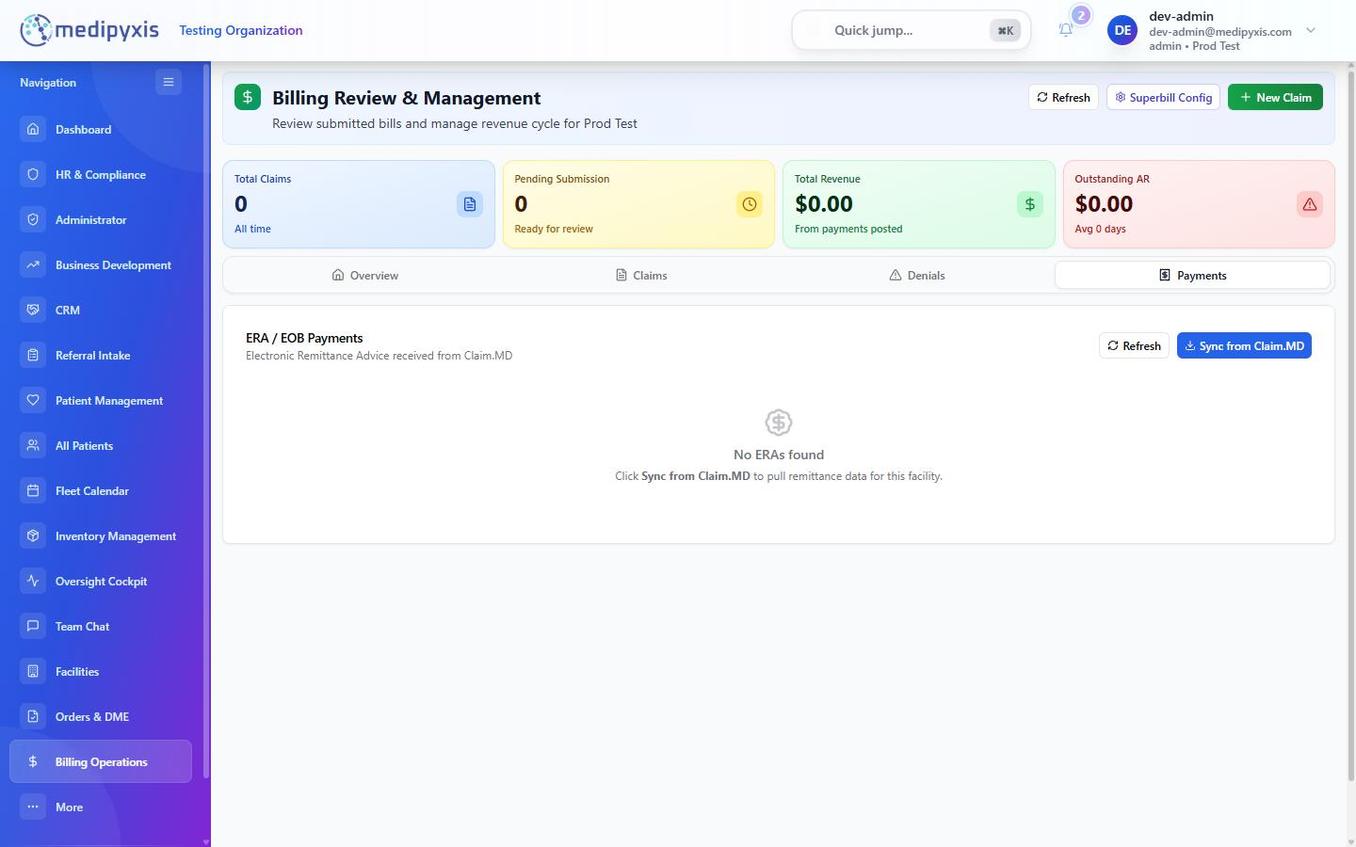 The Payments (ERA) tab. Each row represents one 835 ERA batch delivered by Stedi. The Match Status column indicates whether lines were auto-posted or require attention.
-
Review the ERA batch list. Each row shows: - Payer — the insurance carrier that issued the ERA. - Paid Date — the payment/remittance date carried on the 835. - Total Paid — the sum of all payment lines in the batch. - Matched Lines — the number of lines auto-posted to claims. - Unmatched Lines — the number of lines requiring manual reconciliation. - Status — Posted (all lines matched), Partial (some lines unmatched), or Unmatched (no lines matched).
-
Open a batch to verify auto-posting. Click any ERA row to expand the line-level detail. For each line, confirm: - The Claim # links to the correct claim. - The Allowed Amount and Paid Amount match the payer's EOB. - Contractual Adjustments (CO codes) and Patient Responsibility (PR codes) amounts are correctly recorded. Adjustment group codes are reported as CO, PR, OA, or PI.
-
Confirm posted claims. In the Claims tab, verify that claims referenced by the ERA now show status Paid. The claim detail should display the payment date, check/EFT number, and paid amount from the ERA.
Steps — manually reconcile unmatched ERAs
-
Filter to Unmatched lines. Within the ERA batch detail, select the Unmatched tab or filter by Match Status: Unmatched.
-
Identify the correct claim. For each unmatched line, note the payer's claim number, patient name, date of service, and procedure code. Search the Claims tab for a claim matching those details.
-
Link the ERA line to the claim. In the unmatched ERA line row, click Match Manually. Use the search dialog to find and select the correct claim.
-
Post the payment. After matching, click Post Payment. The system applies the allowed amount, adjustments, and patient responsibility to the selected claim and advances it to Paid.
-
Document the discrepancy. If the ERA paid amount differs from the billed charge by more than the expected contractual adjustment, add a note in the Reconciliation Notes field explaining the variance. Flag for supervisor review if the underpayment appears to be a payer error.
Steps — address zero-pay and denial ERAs
-
Identify zero-pay lines. Some ERA lines will show a Paid Amount of $0.00 with a Claim Adjustment Reason Code (CARC). These represent denials or full contractual write-offs returned via ERA. Line status codes on the 835 include Paid, Partial, Denied, Zero Pay, and Reversal.
-
Create a denial record. For zero-pay lines with a denial CARC, click Create Denial in the ERA line row. Medipyxis creates a linked denial record in the Denials tab pre-populated with the denial reason code. Proceed with the appeal workflow as described in Denial Management.
Result
All ERA lines are either Posted to a matched claim or linked to a denial record. The Payments (ERA) tab shows no rows in Partial or Unmatched status. Posted claims reflect accurate Paid Amount and Contractual Adjustment values for AR reporting.
Troubleshooting
| Symptom | Likely cause | What to do |
|---|---|---|
| No ERAs appearing in the tab | Stedi 835 webhook not configured or ERA delivery not enabled | ERA delivery is automatic from Stedi; if none appear, contact your administrator to verify the Stedi webhook configuration |
| Claim status remains Submitted after ERA posted | ERA batch not yet processed | Allow time for delivery; ERAs land automatically once the payer issues the 835 |
| Post Payment button disabled on manual match | Claim is in Pending or Needs Info status | Resolve the claim's outstanding issues before posting the ERA |
| Paid amount does not match contract | Payer underpayment or fee schedule discrepancy | Document in Reconciliation Notes and escalate to your billing supervisor |
Related
Auto-rendered from related: in frontmatter.