Team Chat overview
Team Chat is Medipyxis's internal messaging surface for real-time communication across your facility — separate from the patient-context Chat tab in Referral Intake.
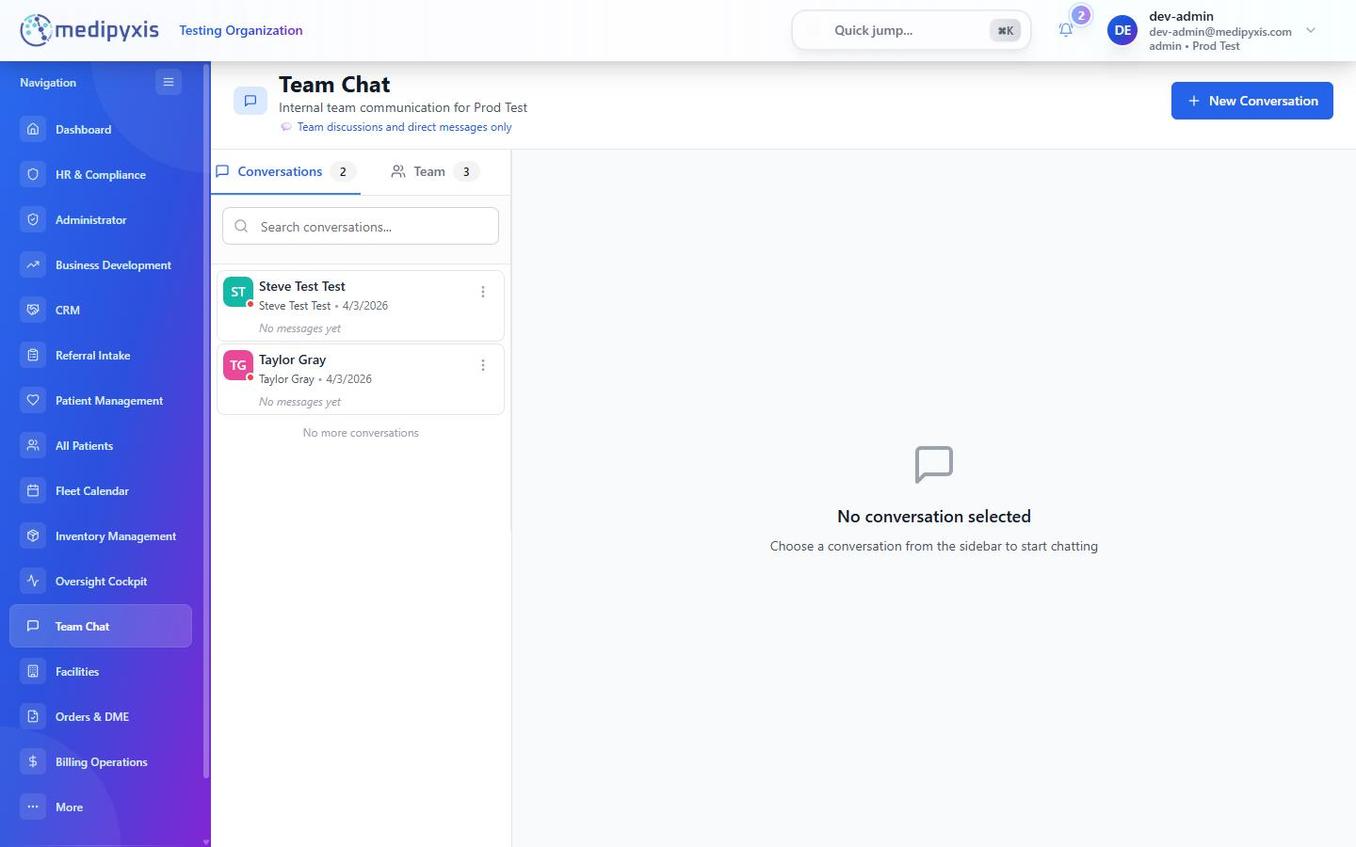
Team Chat — Conversations tab on left, thread view on right.
Two tabs
| Tab | Purpose |
|---|---|
| Conversations | Your direct and group message threads. Use for focused, ad-hoc conversations. |
| Users | The facility roster — pick one or more people to start a direct or group conversation. Online presence is shown here. |
Click a conversation in the left rail to open the thread view on the right. Recognition messages appear as Kudos threads.
Sending a message
- Click the conversation or team channel where you want to post.
- Type your message in the input field at the bottom of the thread.
- @mention a colleague by typing
@followed by their name — they receive a notification badge in the app and, if configured, an email alert. - Attach a file by clicking the paperclip icon next to the message input. Supported types: PDF, images (PNG, JPG), and common document formats. Files are stored within Medipyxis — do not attach PHI-containing documents through personal email or external services.
- Press Enter (or click Send) to post.
Starting a new conversation
- Click the + icon at the top of the Conversations tab.
- Search for or select one or more teammates.
- Type your first message and press Enter. The thread opens immediately and appears in both participants' Conversations lists.
Difference from Referral Intake Chat
The Chat tab inside a Referral Intake detail panel is scoped to that specific referral record — messages there appear in the referral's audit history and are visible to anyone with access to that referral. Team Chat is a general-purpose messaging tool with no patient-record linkage.
Related
Auto-rendered from related: in frontmatter.