Visit Wizard overview
The Visit Wizard is Medipyxis's step-by-step wound care documentation flow. It guides clinicians through 17 sections — from consent to provider attestation — supporting documentation completeness, real-time LCD compliance, and clean billing-code generation before a note is signed.
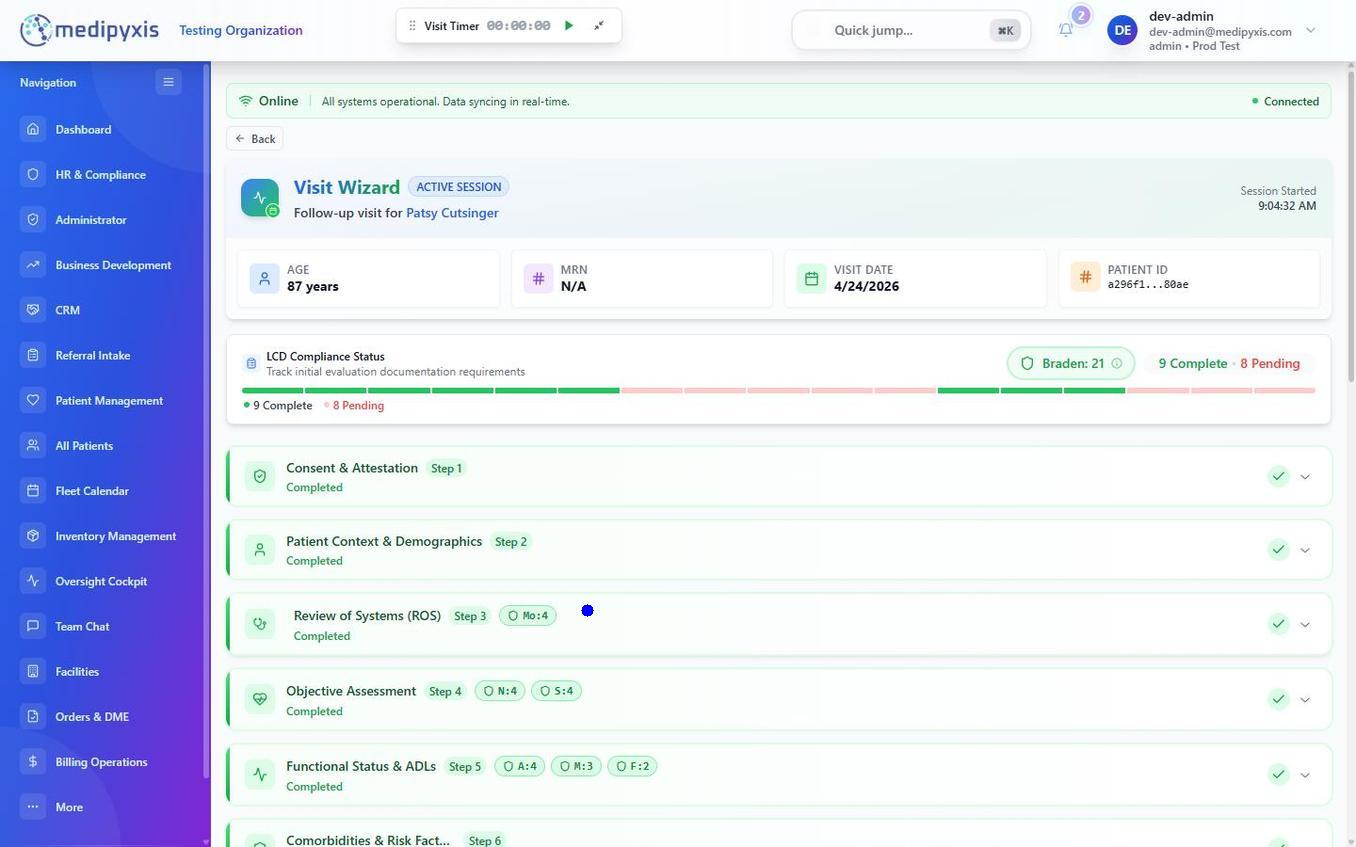
The Visit Wizard section navigator. Completed sections display a checkmark, and the active section is highlighted.
How the Visit Wizard fits into the workflow
The Visit Wizard opens from the Fleet Calendar (tap the appointment, then Start Visit), from the Wound Cockpit, or from the Patient Chart's Appointment Management card. All three surfaces call the same resolver, so a live draft is resumed by identifier no matter which surface you came from. When opened, the wizard locks to the selected patient, wound, and date of service. See How the Visit Wizard opens for the route-on-arrival behavior.
The Visit Wizard route is /facility/{facility_uuid}/visit-wizard-v2-page.
Fleet Calendar uses specialty routing: Start Visit sends primary-care patients to the Primary Care Cockpit and wound-care patients into the Visit Wizard.
How the Visit Wizard is structured
The Visit Wizard uses 17 sections that mirror the structure auditors expect. Notable behaviors:
- Continuous autosave — each field is saved as you complete it (per-field debounced save plus a safety-net heartbeat), so drafts survive network drops and device switches. There is no separate offline mode in the web app.
- Warn-and-proceed — sections that used to hard-block on incomplete fields now surface a soft warning and let you continue, recording a review flag rather than stopping documentation. (One exception: if the service date does not match the appointment date, a soft-block prompt at close-out asks for a reason.)
- Clinical history carry-forward — comorbidities, allergies, prior treatments, and historic measurements pre-populate from the prior visit; a Pull from History action can bring forward documented sections on demand.
- LCD Navigator ambient badge — real-time Medicare compliance status, always visible at the top. See LCD Navigator.
- ABI documentation for compression — the wizard flags a compression order that lacks a documented ankle-brachial index.
- AI-assisted drafting — generate section text from structured data, with guardrails and a one-time AI Disclaimer acknowledgment.
- Medical necessity in your own words — the note prints the necessity narrative you wrote, and prompts you for one when it is missing. It is not generated for you. See How your progress note is written.
- Deterministic CPT autocode with AI fallback when the deterministic engine returns zero rows; Pull Codes can auto-populate billing codes from the documentation.
- LCD audit on save — every save runs a compliance audit that updates the ambient badge.
The 17 sections
| # | Section | Key fields / notes |
|---|---|---|
| 1 | Consent & Attestation | HIPAA notice, telehealth consent toggle, patient e-signature. |
| 2 | Patient Context / Demographics | Reason for visit, visit type, allergies. Insurance is shown here; the secondary payer is read-only — edit insurance on the Insurance tab. |
| 3 | Review of Systems | Body-system checklist; carries forward from prior visit. |
| 4 | Objective Assessment | Vitals: BP, HR, Temp, SpO₂, Respirations, Weight, Height, BMI. |
| 5 | Comorbidities / Risk Factors | DM, PAD, CVI, CHF, lymphedema, smoking status. Feeds the billing engine and stage-aware ICD-10 resolver. |
| 6 | Functional Status & ADLs | Ambulation, ADL independence, fall risk. |
| 7 | Wound Assessment | Etiology, staging, dimensions, tissue percentages, anatomical location, exudate, pain, infection signs, photo upload. Each wound carries a Treating / Monitoring status. See Wound Assessment. |
| 8 | Previous Treatment | Prior interventions (offloading, compression, debridement history, prior grafts). |
| 9 | Treatment / Intervention | Debridement type, dressing selection, ultrasonic therapy (MIST / Arobella), AI-assisted draft available. |
| 10 | Care Plan | Goals, frequency, next-visit interval, plan-of-care dates. |
| 11 | Procedures & Supplies | Graft SKU + UIN, wastage calculation, Generate Procedure Note, auto-mapped to billing codes. |
| 12 | Orders & DME | Clinical orders and DME. DME is a vendor-fulfilled order — there is no product picker here; clinicians order and the item is fulfilled downstream. |
| 13 | Medication Management | Medications and DoseSpot e-prescribing (pharmacy selection and prescription handled in the DoseSpot modal). |
| 14 | Billing | Deterministic CPT autocode with AI fallback, E/M level, modifiers, POS code, medical necessity narrative. Billing lines can be dragged to reorder. Staging codes here opens the documentation checklist — see How your progress note is written. |
| 15 | Patient Education | Handout selection and teach-back. |
| 16 | LCD Audit & Review | LCD Navigator final review — see LCD Navigator. |
| 17 | Provider Attestation | ESIGN/UETA/CMS/HIPAA attestation and Sign & Lock. See Sign Off. |
Autosave and drafts
The Visit Wizard saves continuously — each field is written as you complete it, with a safety-net heartbeat — so you rarely need to save manually. Draft visits appear on the Fleet Calendar with a draft status and can be resumed on any device.
Clinical history carry-forward
When you open a follow-up visit, the wizard pre-populates from the prior visit: Review of Systems, Comorbidities, Allergies, Previous treatments, Historic measurements (used to compute % area change), and the care plan. A Pull from History action lets you bring specific sections forward on demand, with a preview before applying.
Always review pre-populated values — carry-forward is a starting point, not a substitute for re-assessment.
LCD Navigator (ambient)
The LCD ambient badge is visible at the top of every section and refreshes on every save:
- Green — all checks pass.
- Amber — at least one item needs clinician action.
- Red — a flagged item; resolve it before Sign & Lock.
Click the badge to open Dojo tiles with intervention guidance and the copy bank of pre-written compliance statements for NPWT, Compression, and Offloading. Full guide: LCD Navigator.
AI-assisted drafting
Several sections expose an AI-assisted draft button. The model drafts a clinical narrative from the structured data you have entered. You must read the draft, edit anything inaccurate, and acknowledge the AI Disclaimer the first time you use AI drafting in a visit.
Anything left in an AI draft becomes part of your signed note, so review it carefully before attestation. The progress note itself prints only what you documented: where a field is blank it says "Not documented." rather than supplying a sentence. See How your progress note is written.
Procedures & Supplies
The Procedures & Supplies section records what was done and what was used. From this section you can add procedures, enter graft SKUs/UINs and quantities (wastage is calculated automatically), and click Generate Procedure Note. Inventory is deducted and a tissue log entry is written on save; anything documented here flows into the billing codes engine.
Provider Attestation and Sign & Lock
The final section captures the rendering provider's electronic signature under the ESIGN Act, UETA, CMS, and HIPAA disclosure standards. Complete the visit with Sign & Lock; a Go to Billing prompt then appears. After sign-off, the note is locked and changes require an Addendum with a documented reason. See Sign Off.
Offline documentation
The web Visit Wizard is online-only and saves continuously to the server; there is no Work Offline toggle. See Document a visit offline for what this means for field visits.
Related modules
- Wound Cockpit — the canonical wound screen and between-visit hub.
- How the Visit Wizard opens — route-on-arrival: draft resume, fresh start, and signed-note protection.
- Note honesty guardrails — what the renderer will and will not add to your signed note.
- LCD Navigator — ambient compliance badge, Dojo tiles, and copy bank.
- Sign Off — provider attestation, addenda, and audit log.
- How your progress note is written — what the note prints, and the documentation checklist before it.
- Document a visit offline — how offline field visits are handled.
Related
Auto-rendered from related: in frontmatter.