Submit a claim
Walk through the New Claim form to create and submit a CMS-1500-based claim to the payer via the Stedi clearinghouse (837P JSON).
Before you start
- The patient visit has been completed and signed by the rendering provider.
- You have the patient's insurance information (payer, member ID, group number).
- Diagnosis (ICD-10) and procedure (CPT/HCPCS) codes are confirmed.
- You have the
billerrole, oradmin.
CMS-1500 sections in the New Claim form
The New Claim form maps directly to the CMS-1500 paper claim form sections. The table below lists every section represented in Medipyxis and the corresponding fields.
| CMS-1500 Section | Fields in Medipyxis |
|---|---|
| §1 Insurance Type | Insurance type selector (Medicare · Medicaid · Tricare · Champva · Group Health Plan · FECA Blk Lung · Other) |
| §2 Patient Name | patient_last_name, patient_first_name, patient_middle_initial, patient_suffix |
| §4 Insured Name | insured_last_name, insured_first_name, insured_middle_initial |
| §5 Patient Address | patient_address, patient_city, patient_state, patient_zip, patient_phone |
| §6 Patient Relationship to Insured | Relationship selector (Self · Spouse · Child · Other) |
| §7 Insured Address | insured_address, insured_city, insured_state, insured_zip, insured_phone |
| §8 Reserved | Reserved field (read-only; populated per payer requirements) |
| §10 Condition Related To | Checkboxes: Employment (current or previous) · Auto Accident (with state) · Other Accident |
| §17 Referring Provider | referring_provider_name, referring_provider_npi — auto-filled from the patient's referring physician on record |
| §21 Diagnosis Codes | ICD-10 codes A through L (up to 12 diagnosis pointers) |
| §24A Date of Service | date_of_service_from, date_of_service_to |
| §24B Place of Service (POS) | POS code selector (e.g., 11 Office · 12 Home · 31 SNF) |
| §24D Procedure Code + Modifiers | cpt_hcpcs_code, modifier_1, modifier_2, modifier_3, modifier_4 |
| §24E Diagnosis Pointer | Pointer(s) linking procedure to §21 diagnosis codes (A–L) |
| §24F Charges | charge_amount per line |
| §24G Units | units per line |
| §24H EPSDT / Family Plan | EPSDT indicator checkbox |
| §24I ID Qualifier | Qualifier code for the rendering provider ID type |
| §24J Rendering Provider NPI | rendering_provider_npi |
| §25 Federal Tax ID | federal_tax_id (EIN or SSN toggle) |
| §26 Patient Account Number | patient_account_number (auto-populated from the patient record) |
| §27 Accept Assignment | Accept Assignment toggle (Yes / No) |
| §28 Total Charge | Calculated automatically from §24F line totals |
| §29 Amount Paid | amount_paid (patient or other payer payment received prior to submission) |
| §30 Balance Due | Calculated automatically (§28 minus §29) |
| §31 Provider Signature | Digital provider signature captured during visit attestation |
| §32 Service Facility | service_facility_name, service_facility_address, service_facility_npi |
| §33 Billing Provider | billing_provider_name, billing_provider_address, billing_provider_npi, billing_provider_phone |
Steps
- Open the claim form. Navigate to
/facility/{facility_uuid}/billing/new— the New Claim form opens as a full page. (Billers also reach it by clicking Edit on a claim in the Work Queue.)
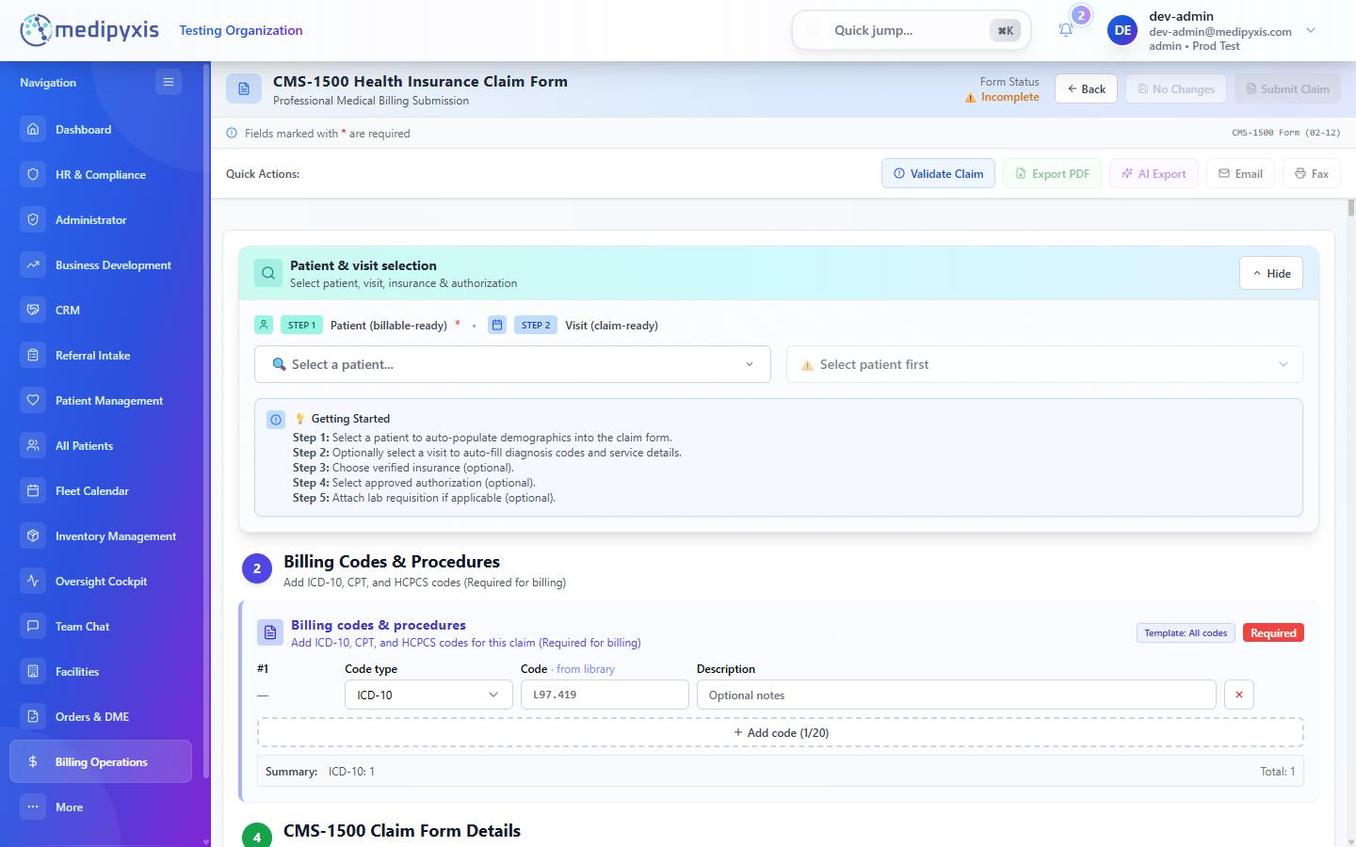 The top of the New Claim form. §1 Insurance Type and §2 Patient Name are the first fields.
-
Complete §1 — Insurance Type. Select the appropriate insurance type from the dropdown. This drives payer-specific validation rules downstream.
-
Complete §2 — Patient Name. Search for the patient by last name or date of birth. Selecting an existing patient auto-fills §4 Insured Name, §5 Patient Address, §17 Referring Provider, §26 Patient Account Number, and §29 Amount Paid from the patient record.
-
Verify §4 through §8. Confirm the insured name and address match the insurance card. Correct any discrepancies before proceeding — payer rejections for demographic mismatches are common.
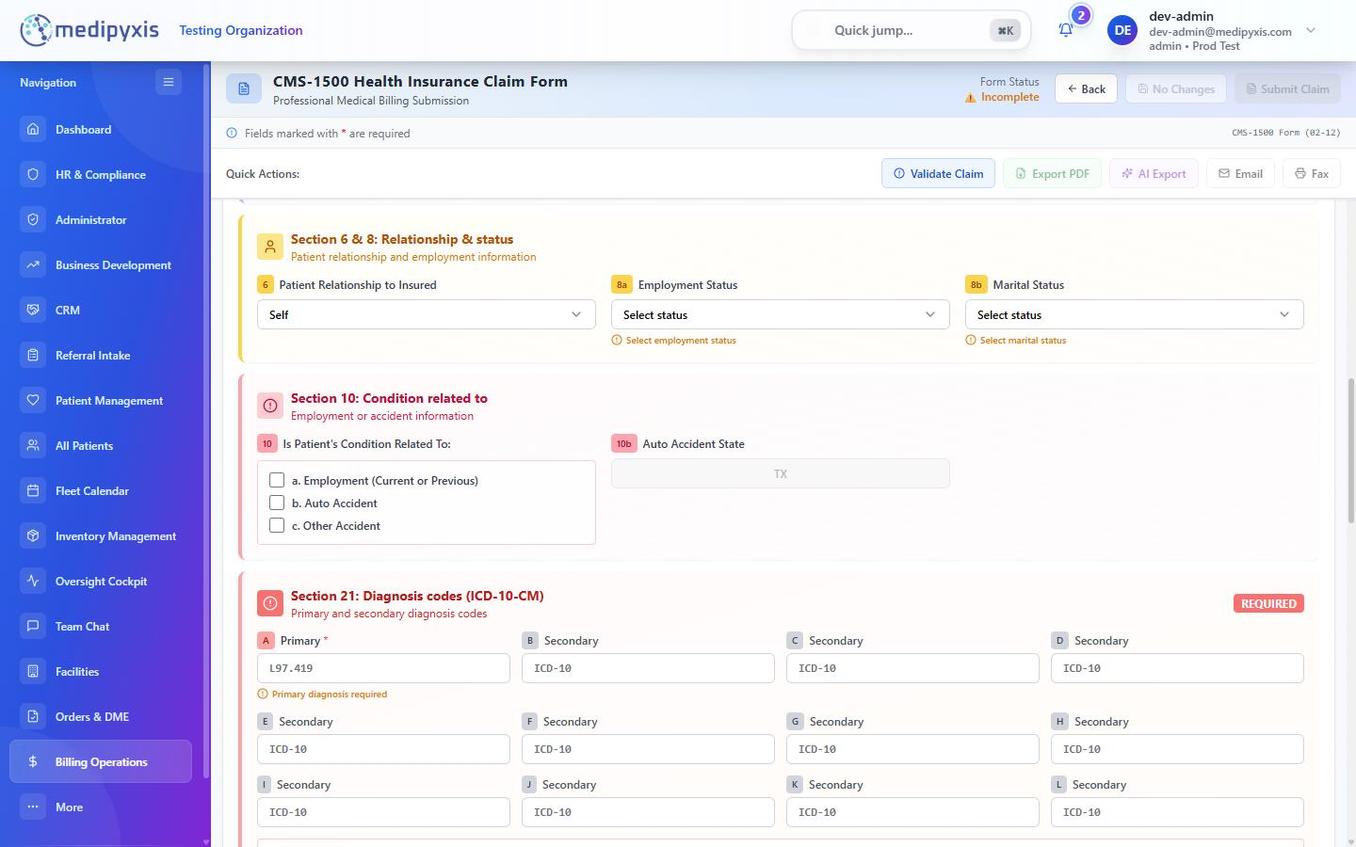 §6, §10, and §21 appear in the middle of the form. Diagnosis codes A–L are entered in the §21 grid.
-
Set §6 — Patient Relationship. If the patient is the subscriber, select Self. For dependents, select Spouse, Child, or Other and enter the insured's name in §4.
-
Confirm §17 — Referring Provider. The referring provider name and NPI auto-fill from the patient's referring physician on record. Correct them if the referral is different for this claim.
-
Complete §10 — Condition Related To. Check the applicable box if the condition is related to employment, an auto accident (include the state), or another accident. Leave all boxes unchecked for standard illness/injury.
-
Enter §21 — Diagnosis Codes. Add up to 12 ICD-10 codes using the code search. The first code entered becomes pointer A and is required. Additional codes (B–L) are optional.
-
Add service lines — §24A through §24J. Click + Add Line for each procedure: - §24A: Enter the date of service range (
date_of_service_fromanddate_of_service_to). - §24B: The POS code is auto-derived from the visit's service location; override it if needed. - §24D: Enter the CPT/HCPCS code and up to four modifiers. - §24E: Select the diagnosis pointer(s) from the codes entered in §21. - §24F: Enter the charge amount. - §24G: Enter units. - §24H: Check EPSDT if applicable. - §24I / §24J: Confirm the ID qualifier and rendering provider NPI (auto-populated from the visit record).
Service lines can be dragged to reorder; the CMS-1500 Box 24 line numbering re-asserts automatically after a move.
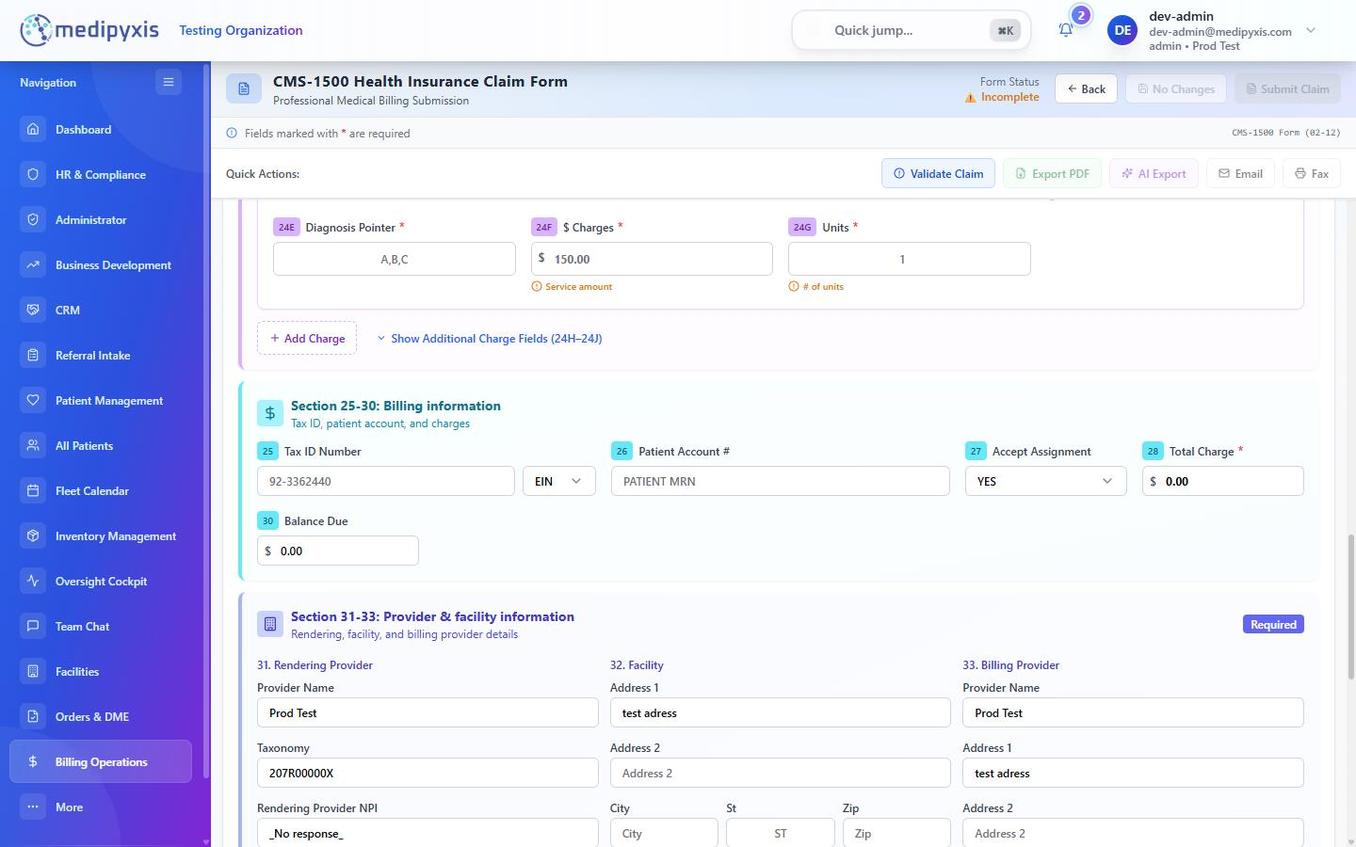 The lower portion of the New Claim form covering §24 service lines through §33 Billing Provider.
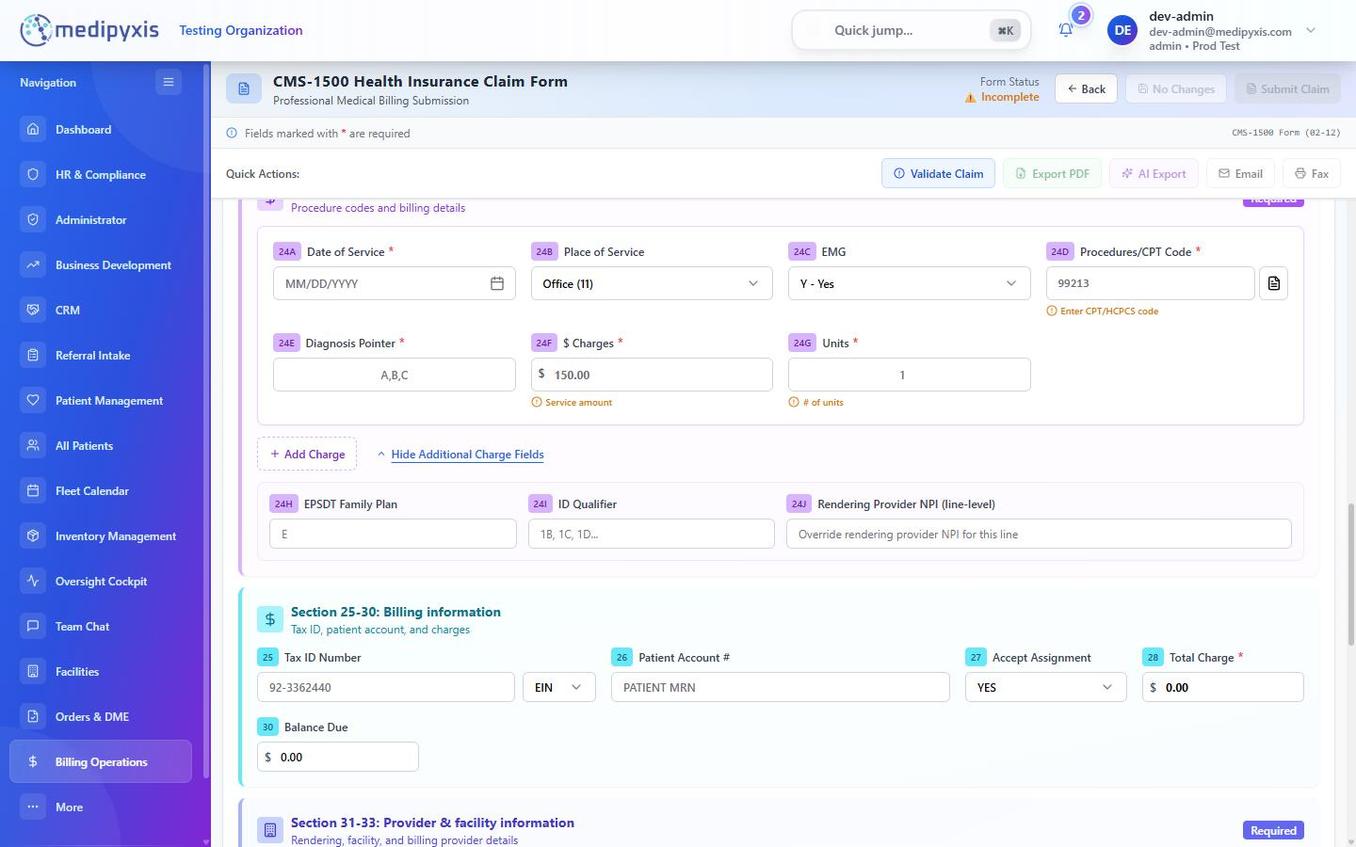 Expanded §24 line showing the modifier fields and charge/unit entry.
-
Complete §25 through §33. These fields are generally auto-populated from your facility and provider configuration:
- §25 Federal Tax ID — verify the EIN is correct for the billing entity.
- §27 Accept Assignment — confirm the toggle matches your payer contract.
- §28 Total Charge and §30 Balance Due are read-only calculated fields.
- §32 Service Facility and §33 Billing Provider — confirm addresses and NPIs match your payer enrollment.
-
Save or submit the claim. Click Save Draft to save without submitting, or Submit Claim to send it to the payer through Stedi. (A confirmation prompt appears before either action completes.)
Result
A Save Draft keeps the claim as a draft; Submit Claim sends it to Stedi and advances it toward Submitted. The claim appears in the Work Queue tied to its encounter, where you can track and set its Claim Status.
/billing/new.
Troubleshooting
| Symptom | Likely cause | What to do |
|---|---|---|
| Submit Claim disabled or errors | One or more required fields missing or invalid | Scroll through the form — required fields are outlined in red |
| Payer rejects claim for NPI mismatch | Group NPI used in §24J instead of individual NPI | Update the rendering provider's NPI in HR & Compliance, then resubmit |
| §28 Total Charge calculates as zero | No service lines added, or charge amounts left blank | Add at least one §24 line with a non-zero charge |
| Claim stuck at Exported | Stedi credentials missing, webhook not wired, or payer not enrolled | Have your administrator verify the Stedi setup in Billing Setup and confirm payer enrollment is Active |
Related
Auto-rendered from related: in frontmatter.