Create an appointment in the Fleet Calendar
Book a patient visit and assign it to a provider from the Fleet Calendar.
Before you start
- The patient must already exist in the system — either from a referral in Referral Intake or as a returning patient.
- You must have a provider and a time slot in mind.
Steps
- Open the Fleet Calendar. Click Fleet Calendar in the sidebar — the calendar opens in Day view by default.
- Click Create Appointment (top of the calendar) or click an empty slot in a provider's swim lane. The Create New Appointment dialog opens.
- Select the Patient (required). Type the patient's name or MRN in the Patient field and choose the matching record from the dropdown.
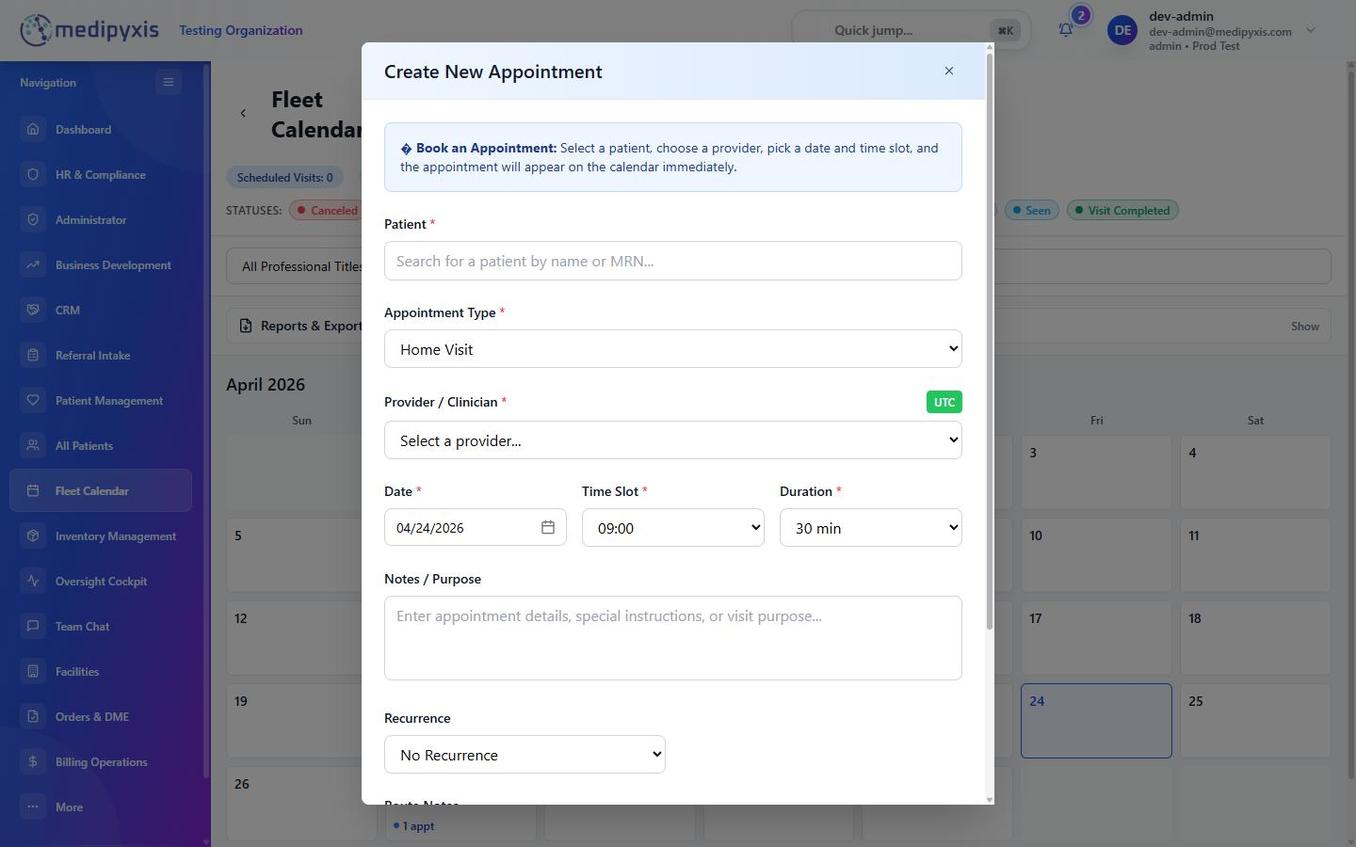
Top half of the Create New Appointment dialog.
- Choose a Visit Type. Select from the Visit Type dropdown (options come from your organization's configured visit types).
- Set Place of Service and Discipline. Pick the Place of Service (POS code) and the Discipline from their dropdowns.
- Assign a Provider / Clinician (required). Choose from the Provider / Clinician list — the provider's time zone appears next to the field once selected.
- Set Date, Time Slot, and Duration (all required). Pick the Date, choose an available Time Slot, and select a Duration from the dropdown (15, 30, 45, 60, 90, or 120 minutes).
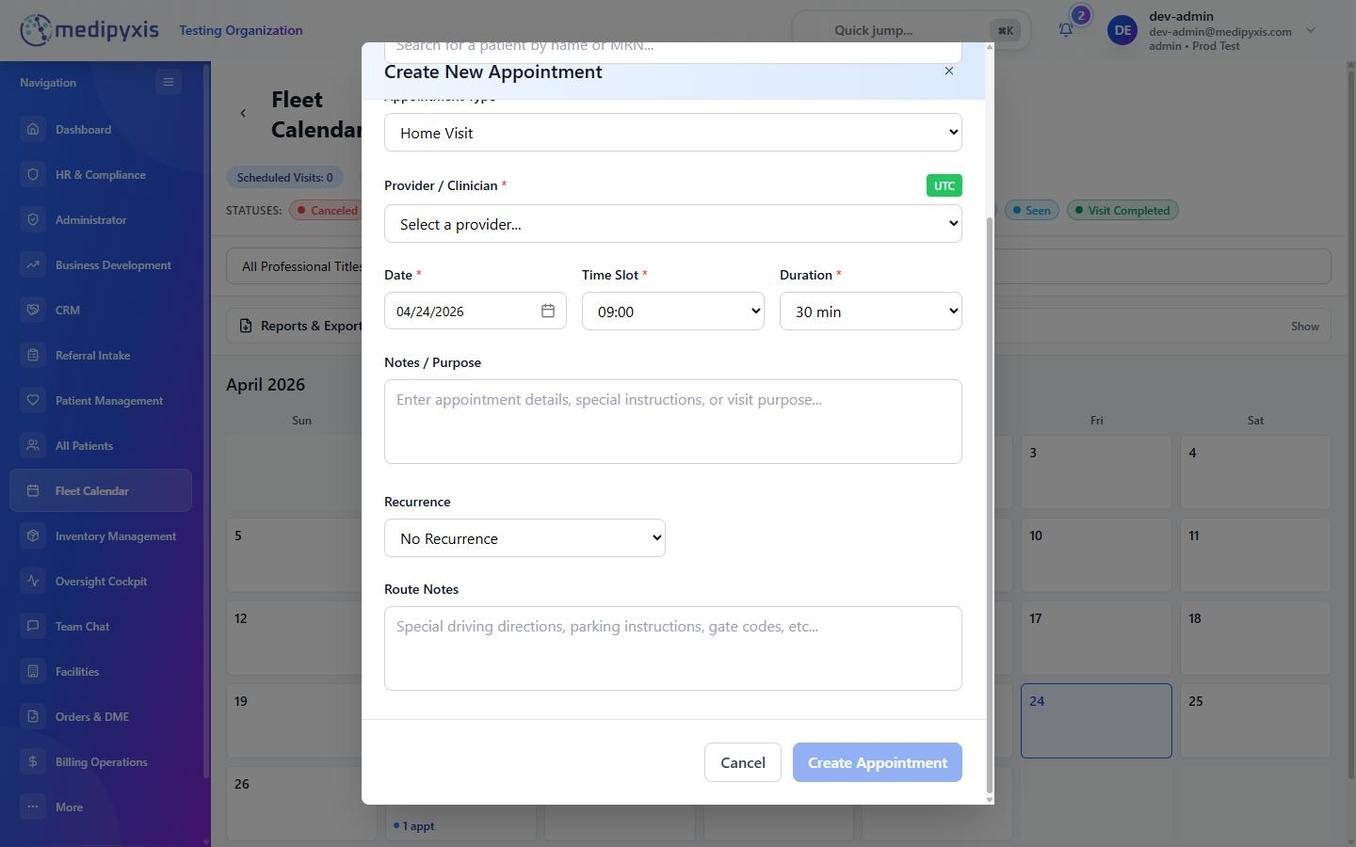
Bottom half of the Create New Appointment dialog.
- Add Notes / Purpose (optional). Use the Notes / Purpose field for clinical context or the reason for the visit, visible to the assigned clinician.
- Configure Recurrence (optional). Set Recurrence to Daily, Weekly, Every 2 weeks, Monthly, or Custom to repeat the appointment. When recurrence is on, a Recurrence End Date is required.
- Add Route Notes (optional). Enter access instructions, parking details, or other logistics in Route Notes. These are saved on the appointment record for the visiting clinician.
- Create the appointment. Submit the form — the appointment appears on the calendar with Scheduled status.
Result
The new appointment card displays in the assigned provider's swim lane (Day view) or on the correct date tile (Month view), color-coded as Scheduled. If you set a recurrence, the series is created through the recurrence end date.
Troubleshooting
| Symptom | Likely cause | What to do |
|---|---|---|
| Patient field returns no results | Patient not yet in the system | Create a referral in Referral Intake first, or add the patient manually |
| Cannot submit the form | A required field is empty | Check Patient, Provider / Clinician, Date, Time Slot, and Duration — all are required (plus Recurrence End Date if recurrence is on) |
| Provider not in list | Provider not active at this facility | Contact your admin to assign the provider to this facility in HR & Compliance |
Related
Auto-rendered from related: in frontmatter.