Use the LCD compliance status and review
The Visit Wizard tracks Medicare Local Coverage Determination (LCD) compliance as you document. A live LCD Compliance Status bar at the top of the wizard summarizes how far along the encounter is, and each of the 17 steps shows its own status so you can see exactly what still needs attention before you sign.
The LCD Compliance Status bar
At the top of the wizard, the status bar shows your overall progress:
- Sections completed — a count of complete steps out of 17 (for example, "10 of 17 sections completed").
- Flagged for review — the number of steps that still need attention before final submission.
- A progress track that fills as sections are completed.
The bar turns red/pink when any steps are still pending and reminds you to review flagged sections before final submission.
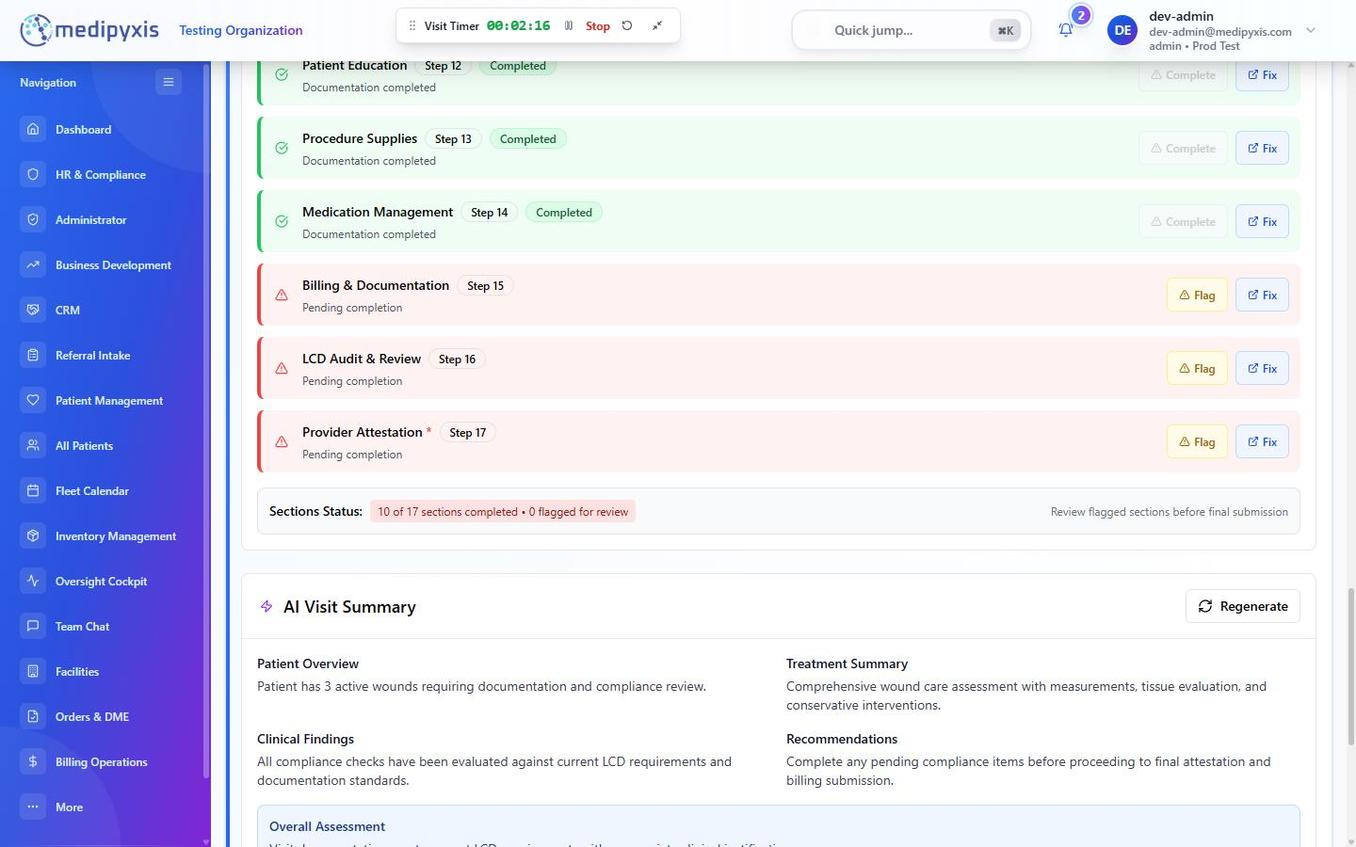 The Visit Wizard step list. Completed steps show a green "Completed" badge; steps needing attention show a red/pink container with an orange warning. The Sections Status banner shows overall progress.
Per-step status
Each of the 17 steps shows one of three statuses:
| Status | What it means | What to do |
|---|---|---|
| Completed (green) | The section's required fields are filled and saved. | Move on to the next step. |
| Needs Attention (red/pink, orange warning) | A required field is missing, invalid, or the section is incomplete. | Click Fix to jump to the section and complete it. |
| Pending (gray) | The section hasn't been started yet. | Open and complete the section. |
Every step row has three actions:
- Complete — confirms the section is done (disabled once the step is already completed).
- Fix — jumps you straight to the section so you can resolve what's missing.
- Flag — marks the section for review, for example when you want your medical director to look at it before sign-off.
The 17 steps
The wizard is organized into 17 sequential steps. The LCD compliance status reflects completion across all of them:
| # | Step |
|---|---|
| 1 | Consent & Attestation |
| 2 | Patient Context & Demographics |
| 3 | Review of Systems (ROS) |
| 4 | Objective Assessment (Vitals) |
| 5 | Functional Status & ADLs |
| 6 | Comorbidities & Risk Factors |
| 7 | Wound Assessment |
| 8 | Previous Treatments |
| 9 | Interventions & Treatments |
| 10 | Care Planning |
| 11 | Orders & DME |
| 12 | Patient Education |
| 13 | Procedure Supplies |
| 14 | Medication Management |
| 15 | Billing & Documentation |
| 16 | LCD Audit & Review |
| 17 | Provider Attestation |
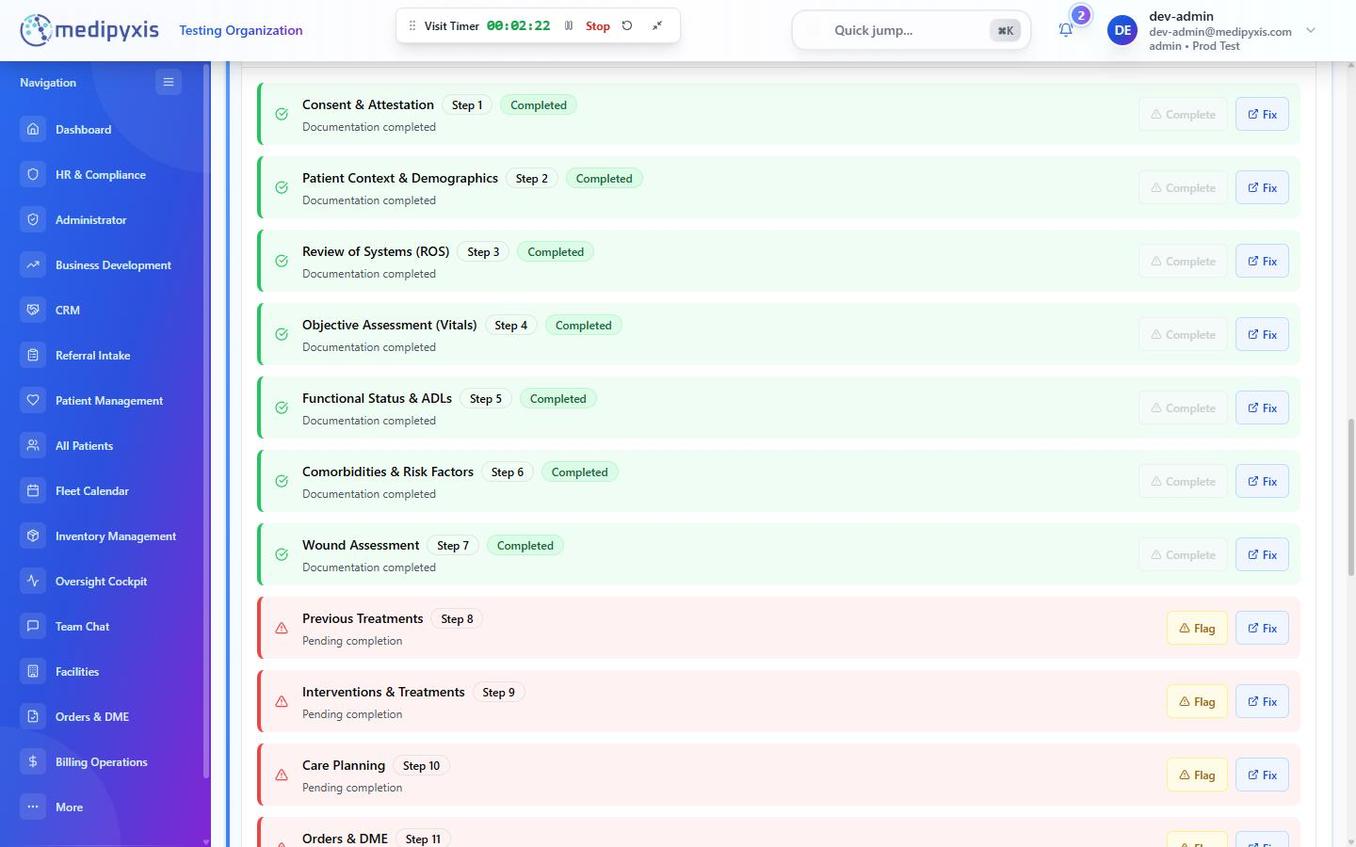 The full 17-step list. Green rows are completed; red/pink rows need attention; gray rows are pending.
Step 16 — LCD Audit & Review
Step 16 is the final compliance review step before attestation. Here you confirm that every prior section is complete and review the AI Visit Summary. Step 16 stays pending until steps 1–15 are complete and you've reviewed the flagged items.
AI Visit Summary
The wizard generates an AI Visit Summary card that consolidates the encounter so far:
- Patient Overview — active wounds and documentation status.
- Treatment Summary — the assessment and interventions documented.
- Clinical Findings — compliance check results against current LCD requirements.
- Recommendations — any pending compliance items to resolve before attestation.
- Overall Assessment — a short narrative summary.
Walk-through — resolve a flagged step
- See the red/pink status on a step in the list (or check the count in the Sections Status banner).
- Click Fix on that step. The wizard jumps to the section.
- Complete the missing field. Save the section.
- Watch the status flip from red/pink to green "Completed".
- Continue until the Sections Status banner shows all 17 complete with 0 flagged.
- Move to step 16 (LCD Audit & Review), review the AI Visit Summary, then proceed to step 17, Provider Attestation.
Result
The Sections Status banner shows 17 of 17 sections completed and 0 flagged. Step 16 is complete, and the encounter is ready for Provider Attestation in step 17. The compliance result is recorded in the encounter audit log and is available to medical directors and billers for review.
Roadmap — planned LCD features
The following LCD capabilities are planned but not yet live in the current product. They appear here so teams can prepare; do not describe them to clinicians as available until they ship.
- Ambient badge (green/amber/red) at the top of every wizard section, refreshing on every save.
- Dojo tiles — intervention guidance tiles that open when you click the badge, each linking to the section with the missing data.
- Copy bank — pre-written compliance statements (planned: 21 rules across NPWT, Compression, and Offloading) that insert standardized language into the linked field.
- Named Navigator checks — a discrete, reviewable list of compliance checks (medical necessity, conservative-care duration, NCCI/MUE edits, modifier validity, and more).
When these ship, this page will be updated with the live workflow.
Troubleshooting
| Symptom | Likely cause | What to do |
|---|---|---|
| Step stays red/pink after saving | A required field is still empty or invalid | Click Fix and confirm every required field (marked with *) is filled, then save. |
| Sections Status count doesn't update | The section didn't save | Reopen the section, confirm required fields, and save again. |
| Step 16 won't complete | Steps 1–15 are not all complete | Work through any red/pink steps first. |
| AI Visit Summary text is wrong | The summary reflects incomplete or incorrect source data | Fix the underlying section; the summary regenerates on save. Do not sign until it matches the encounter. |
Related
Auto-rendered from related: in frontmatter.