Manage products in the Product Catalog
Add new products to your organization's master catalog and understand the column data displayed for existing products.
Before you start
- You must have the
vendor_coordinatororadminrole to add or edit products. - Confirm the product's HCPCS code with your billing team before saving, as it drives claim generation downstream.
- For biologics and matrix products, have the manufacturer's lot format on hand — the form enforces it.
Products and Vendors tabs
The Product Catalog has two tabs: Products (the SKU catalog described below) and Vendors (the inventory vendors you buy from, with their categories). Switch between them at the top of the catalog.
Product Catalog columns
From the Inventory Management hub, select Product Catalog and stay on the Products tab to open the catalog table.
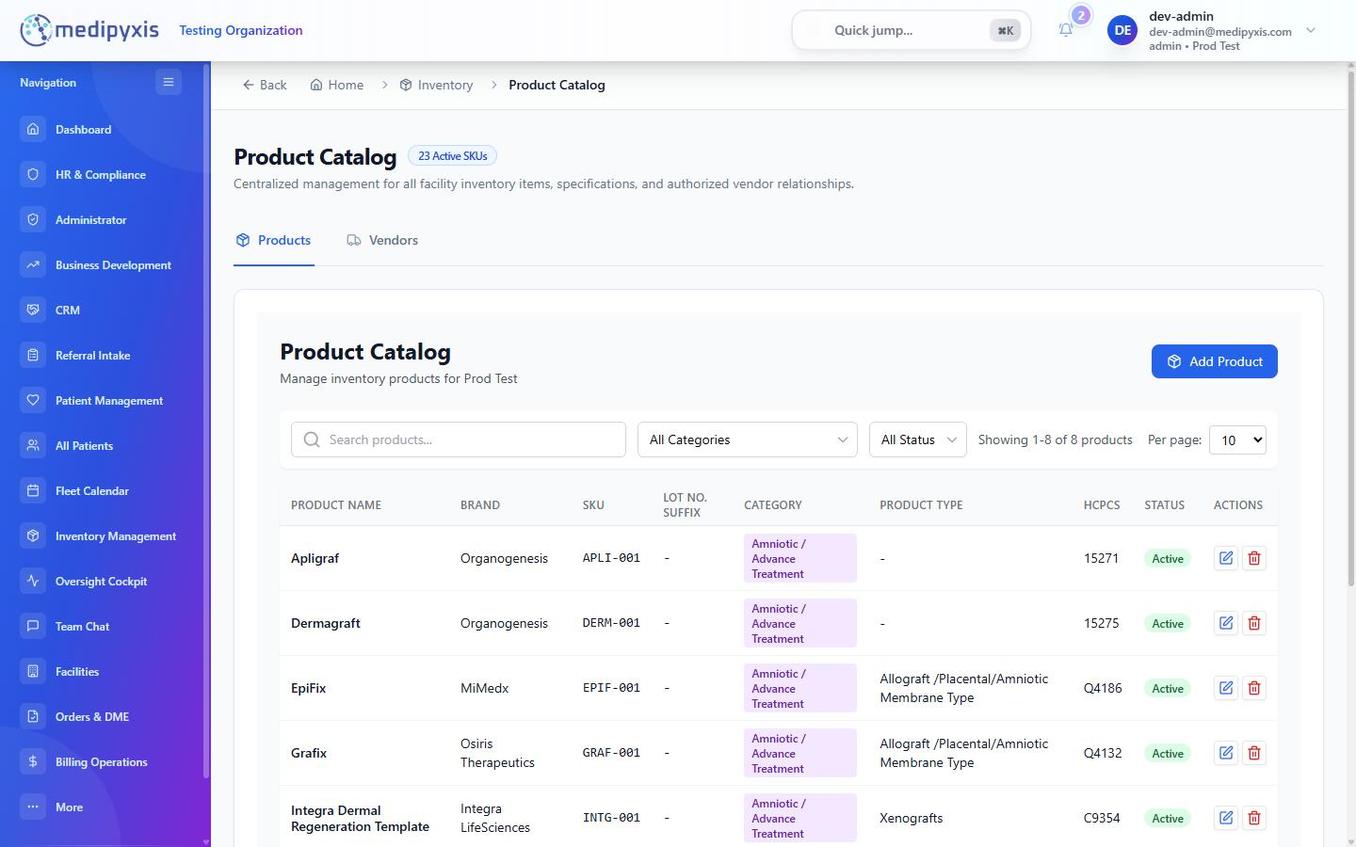
Product Catalog table. Use the search bar above the table to filter by any column value.
| Column | Description |
|---|---|
| NAME | The full commercial product name as it appears on the manufacturer label. |
| BRAND | The manufacturer or brand that markets the product. |
| SKU | Stock Keeping Unit — your organization's internal identifier for this product. Must be unique within your facility. |
| LOT SUFFIX | The suffix pattern appended to manufacturer lot numbers for this product (used during receiving to validate lot strings). |
| CATEGORY | The inventory category: Amniotic / Advance Treatment, Biologics / Matrix, Conservative Care Products, PRP, or Ultrasonic Mist (UM). Determines which receiving tile accepts this product. |
| TYPE | A subcategory within the category (for conservative care this includes items like Foam Dressing, Collagen Matrix, Compression Stocking, and supply types such as Surgical Instrument, PPE, and General Supply). PRP and UM do not have sub-types. |
| HCPCS | The Healthcare Common Procedure Coding System code billed when this product is applied. Required for biologics and amniotic products. |
| STATUS | Active — available for ordering and use. Inactive — hidden from clinician views and the receiving workflow but retained for historical records. |
Add a product
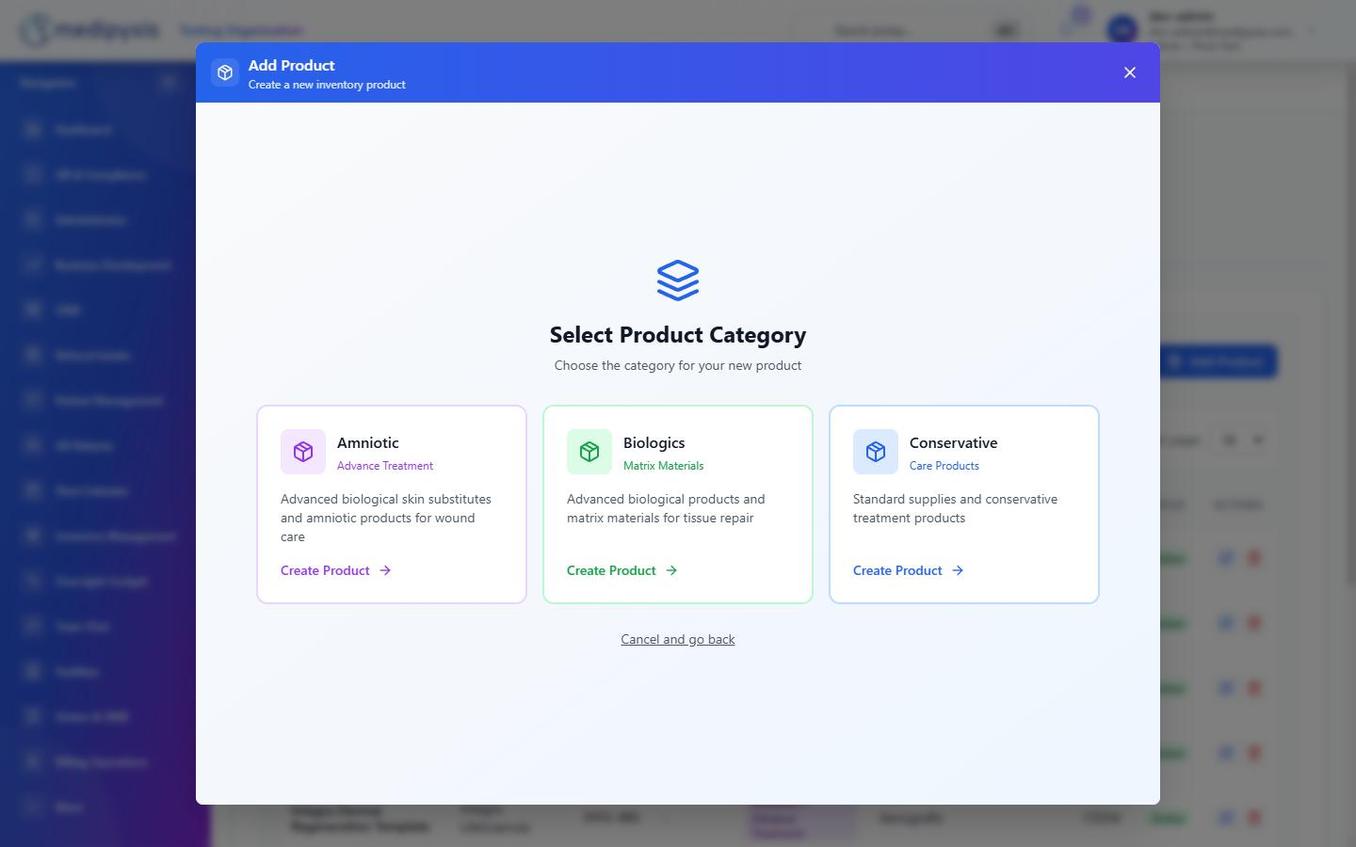
Add Product modal. Category must be selected before the category-specific form fields appear.
-
Open the Add Product modal. From the Product Catalog table, click Add Product in the upper-right corner. The modal opens with a single Category dropdown.
-
Select a category. Choose one of
Amniotic / Advance Treatment,Biologics / Matrix,Conservative Care Products,PRP, orUltrasonic Mist (UM). The form expands to show the fields required for that category.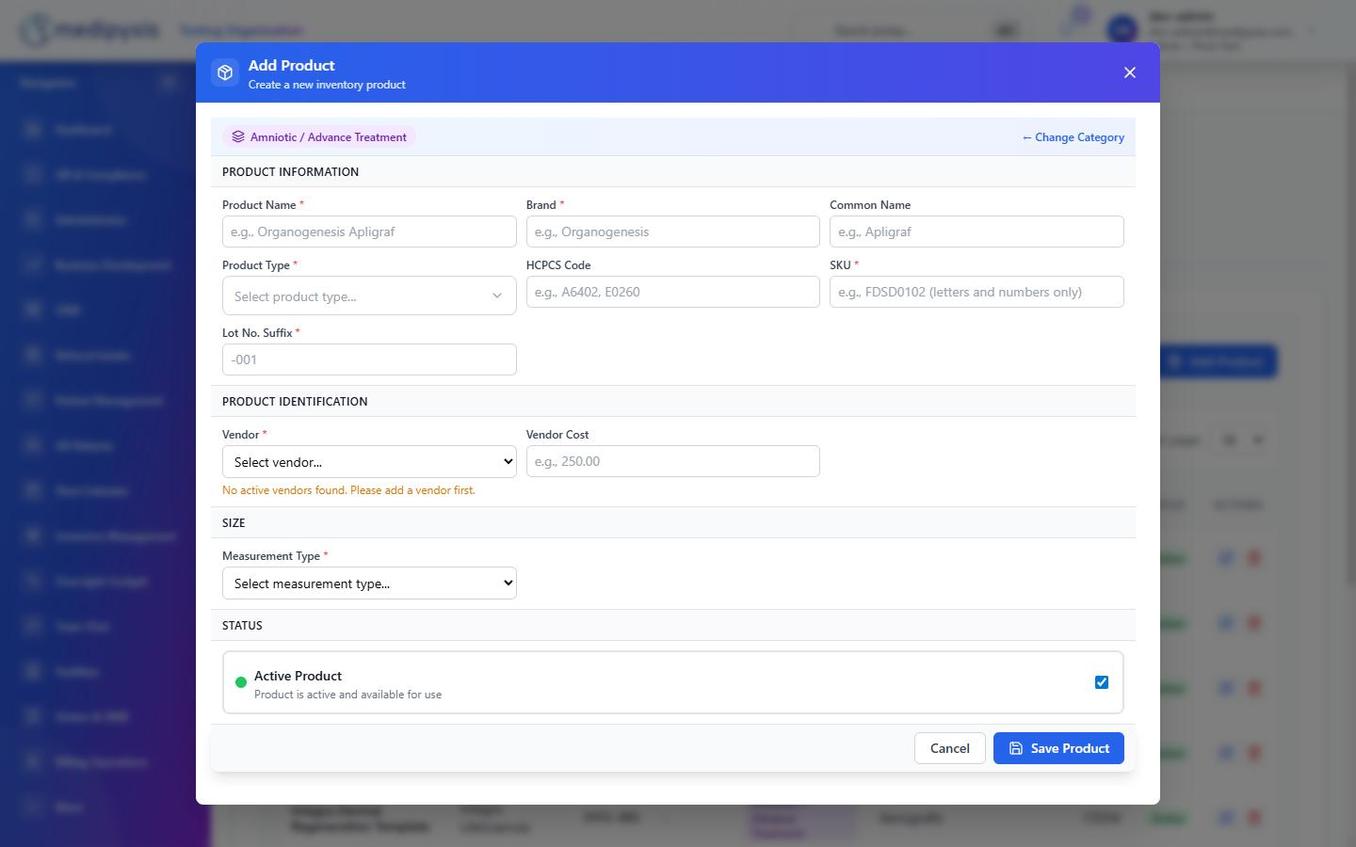
Add Product form — fields vary by category. Biologics require a valid HCPCS code and a manufacturer lot format.
-
Complete the required fields. At minimum, provide: - Name — commercial product name. - Brand — manufacturer name. - SKU — your organization's internal code (no spaces). - LOT Suffix — the suffix pattern printed on the manufacturer's lot label (e.g.,
A1,RF). - Type — select from the available subcategory options for the chosen category. - HCPCS — required forAmniotic / Advance TreatmentandBiologics / Matrix; optional forConservative Care Products. - Status — set toActiveto make the product immediately available, orInactiveto hold it for future use. -
Save the product. Click Save. The new product appears in the Product Catalog table with
ActiveorInactivestatus.
Result
The product is now part of your organization's master catalog. If you set status to Active, it is immediately available in the appropriate receiving workflow (the category tile) and will appear in the Visit Wizard product selector when a clinician chooses a graft or supply item.
Inactive rather than deleting it. Inactive products are preserved for historical reporting and audit trails.
Troubleshooting
| Symptom | Likely cause | What to do |
|---|---|---|
| Save button remains disabled | A required field is empty or contains an invalid value | Scroll through the form; required fields are marked with a red asterisk |
| Duplicate SKU error on save | Another product in the catalog already uses that SKU | Use a unique suffix to differentiate (e.g., append the size) |
| HCPCS field not visible | Conservative Care Products category selected |
HCPCS is optional for that category; scroll to the optional fields section |
Related
Auto-rendered from related: in frontmatter.