Work the Billing Work Queue and submit claims
The Billing Work Queue is the biller's daily home. It is a calendar-synced readiness board: one row per encounter (appointment) in your date range, showing the visit, the progress note, and billing readiness side by side so you can see exactly what is blocking each claim. It is not a claims-processing gate — it surfaces where each encounter stands and gives you the actions to move it forward.
Before you start
- You have the
billerrole, oradmin. - You understand that readiness is derived from the visit and note state — a claim is ready to bill once the visit is Seen and the progress note is complete.
Work Queue columns
Navigate to /facility/{facility_uuid}/billing/work-queue. Each row is an encounter:
| Column | Description |
|---|---|
| Patient | Patient name. |
| DOS | Date of service (the appointment date). |
| Visit Status | Derived: Scheduled · Seen · Not Seen · No Show · Cancelled. |
| Note Status | Derived: No Note Started · Draft Saved · In Progress · Completed · Signed. |
| Billing Readiness | Derived: Not Ready · Pending Provider Completion · Pending Signature · Ready for Billing · Billing in Progress · Billed · Not Billable. |
| Claim Status | The biller-set status on the claim (if a claim exists). See the values below. |
| Charges | Total charge on the claim, if one exists. |
| Provider | The rendering clinician. |
| Blocking Reason | Why the encounter isn't ready (e.g. "Note not completed", "Draft saved", "Patient not seen"). |
| Biller Notes | An internal note you can edit inline on each row. |
| Actions | Open Chart · Edit · Review · Notify (see below). |
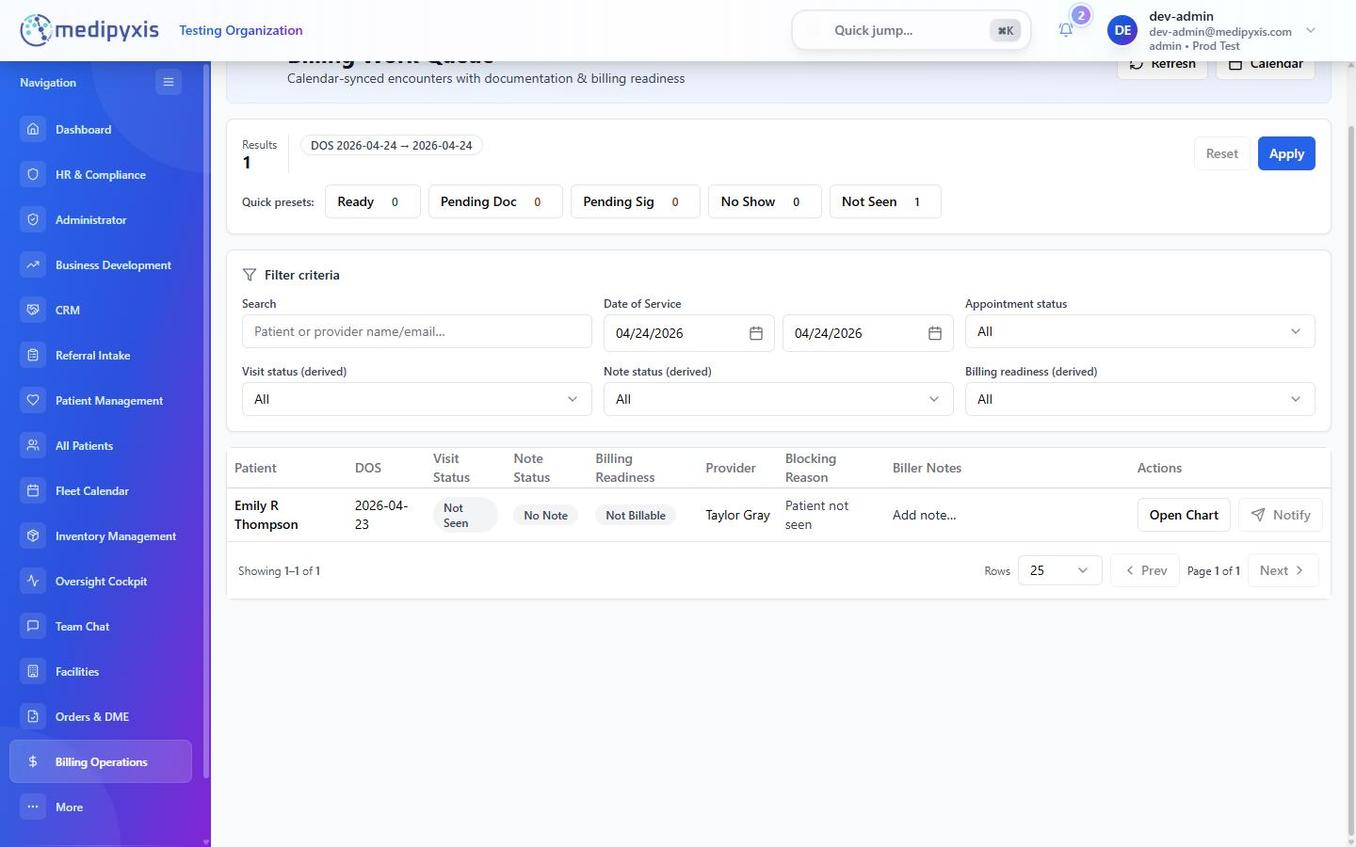
The Work Queue. Visit, Note, and Billing Readiness are derived from the encounter; Claim Status is set by the biller.
How readiness is derived
You don't set Visit, Note, or Readiness — they come from the encounter:
- No Show / Not Seen / Cancelled → Not Billable.
- Note Completed → Ready for Billing.
- Note Signed but no progress note yet → Pending Provider Completion.
- Note Draft Saved → Pending Signature.
- Note In Progress / No Note Started → Not Billable (note not completed).
- Once a claim exists, readiness follows the claim: submitted/accepted/paid → Billed; needs-coding → Ready for Billing; otherwise Billing in Progress.
The Blocking Reason column tells you exactly what to chase.
Claim Status values
When a claim exists, set its status from the Claim Status dropdown on the row. The available statuses are:
Eligibility Needed · Ready · In Progress · Flag Clinical · Hold · Billed · Paid · Denied · Appealed · Corrected · Partial Pay · Patient Responsibility · Write-Off · Void · Needs Coding
Changing a status is recorded in the claim's history; some transitions (for example Flag Clinical) surface a warning.
Filtering the queue
Filters stack — combine any of:
| Filter | Options |
|---|---|
| Search | Patient or provider name / email. |
| Date of Service | Start and end date (defaults to the last 30 days). |
| Appointment status | scheduled · confirmed · in_progress · completed · no_show · cancelled. |
| Visit status | Scheduled · Seen · Not Seen · No Show · Cancelled. |
| Note status | No Note Started · Draft Saved · In Progress · Completed · Signed. |
| Billing readiness | Ready for Billing · Pending Provider Completion · Pending Signature · Billing in Progress · Billed · Not Billable. |
| Claim Status | Any of the 15 claim statuses above, or No Claim. |
| Payer | Any payer present in the current results. |
| Claim Age | Not Submitted · 0–30 · 31–60 · 61–90 · 90+ days (measured from the claim's submission date). |
Quick presets above the table jump to common views: Ready, Pending Doc, Pending Sig, No Show, and Not Seen, each with a live count.
Steps — work your day
- Open the Work Queue. Sidebar → Billing → Work Queue, or navigate to
/billing/work-queue. - Set your date range and click Apply. The queue defaults to the last 30 days.
- Use a quick preset. Click Ready to see encounters ready to bill, or Pending Doc / Pending Sig to see what's waiting on the provider.
- Read the Blocking Reason. For anything not ready, the column tells you what's missing.
- Open the chart if you need context. Click Open Chart to review the patient.
- Nudge the provider when the note is the blocker. Click Notify to record a provider reminder — it also posts an in-app notification, a message in the encounter's team-chat thread, and a Slack nudge. (Notify is available only when the visit is Seen and the encounter isn't already ready or billed.)
- Review a claim's coding. When a claim exists, click Review to open the Coding Review drawer.
- Edit a claim. Click Edit to open the claim in the claim form (
/billing/new). See Submit a claim. - Set the Claim Status. Use the row's Claim Status dropdown as the claim progresses (Ready, Billed, Paid, Denied, etc.).
- Add a biller note inline in the Biller Notes column for anything your team needs to track.
Bulk actions
Select the checkbox on any rows that have a claim, then use the bulk action toolbar to apply a Claim Status to all selected claims at once. Changing filters or the date range clears the selection so stale claims can't be batch-updated by mistake.
Refresh, export, and the calendar
- The queue auto-refreshes every 2 minutes while the tab is visible; Refresh forces an immediate reload.
- Export CSV downloads the current filtered rows (patient, DOS, visit/note/readiness status, blocking reason, provider, biller notes).
- Calendar opens the Fleet Calendar for the same encounters.
Result
At the end of your session, the Ready for Billing preset should be worked down, encounters waiting on the provider have a Notify on record, and each claim carries the correct Claim Status. Claims submitted to the payer flow through Stedi and post back as ERAs — see ERA posting.
Troubleshooting
| Symptom | Likely cause | What to do |
|---|---|---|
| Encounter not in the queue | Outside the selected DOS range, or the appointment status is filtered out | Widen the Date of Service range and clear filters. |
| Readiness stuck at Pending Provider Completion | Note is signed but the progress note hasn't generated | Click Notify to remind the provider. |
| Readiness is Not Billable | Patient was No Show / Not Seen, or the note isn't complete | Confirm the visit actually happened and the note is finished. |
| Notify is disabled | Visit isn't Seen, or the encounter is already ready/billed | Notify only applies to seen encounters still awaiting documentation. |
| No Claim Status dropdown on a row | No claim exists yet for that encounter | A claim is created from the completed visit or via Edit → the claim form. |
Related
Auto-rendered from related: in frontmatter.