Manage claim denials and appeals
Triage a denied claim, work and track an appeal, and close the denial record when the payer renders a final decision.
Before you start
- A claim has been submitted and returned with a denial.
- You have the denial reason code and remittance advice from the payer or ERA.
- You have the
billerrole, oradmin.
Denial appeal status reference
Every denial record carries an appeal status. These are the values Medipyxis tracks, roughly in order from initial triage through final resolution:
| Appeal Status | Meaning |
|---|---|
| Not Started | Denial received; no action taken yet. |
| Not Appealed | A decision was made not to appeal this denial. |
| Needs Review | A biller needs to review the denial and decide the response. |
| In Research | The denial reason is being researched. |
| Pending Documentation | Waiting on records/documentation to support the appeal. |
| Pending Provider Input | Waiting on the provider for clinical input. |
| Ready to Appeal | The appeal is prepared and ready to send. |
| Appeal Submitted | The appeal has been sent to the payer. |
| Under Payer Review | The payer is reviewing the appeal. |
| Additional Info Requested | The payer requested more information. |
| Appeal Accepted | The payer accepted the appeal for reconsideration. |
| Appeal Approved | The appeal was approved — the claim should proceed to payment. |
| Appeal Denied | The appeal was denied by the payer. |
| Claim Corrected & Resubmitted | The claim was corrected and resubmitted rather than formally appealed. |
| Closed — No Further Action | Denial closed; nothing further to do. |
| Closed — Written Off | Denial closed and the balance written off. |
Steps — triage a denial
- Open the Denials view. From the Billing module, open Denials.
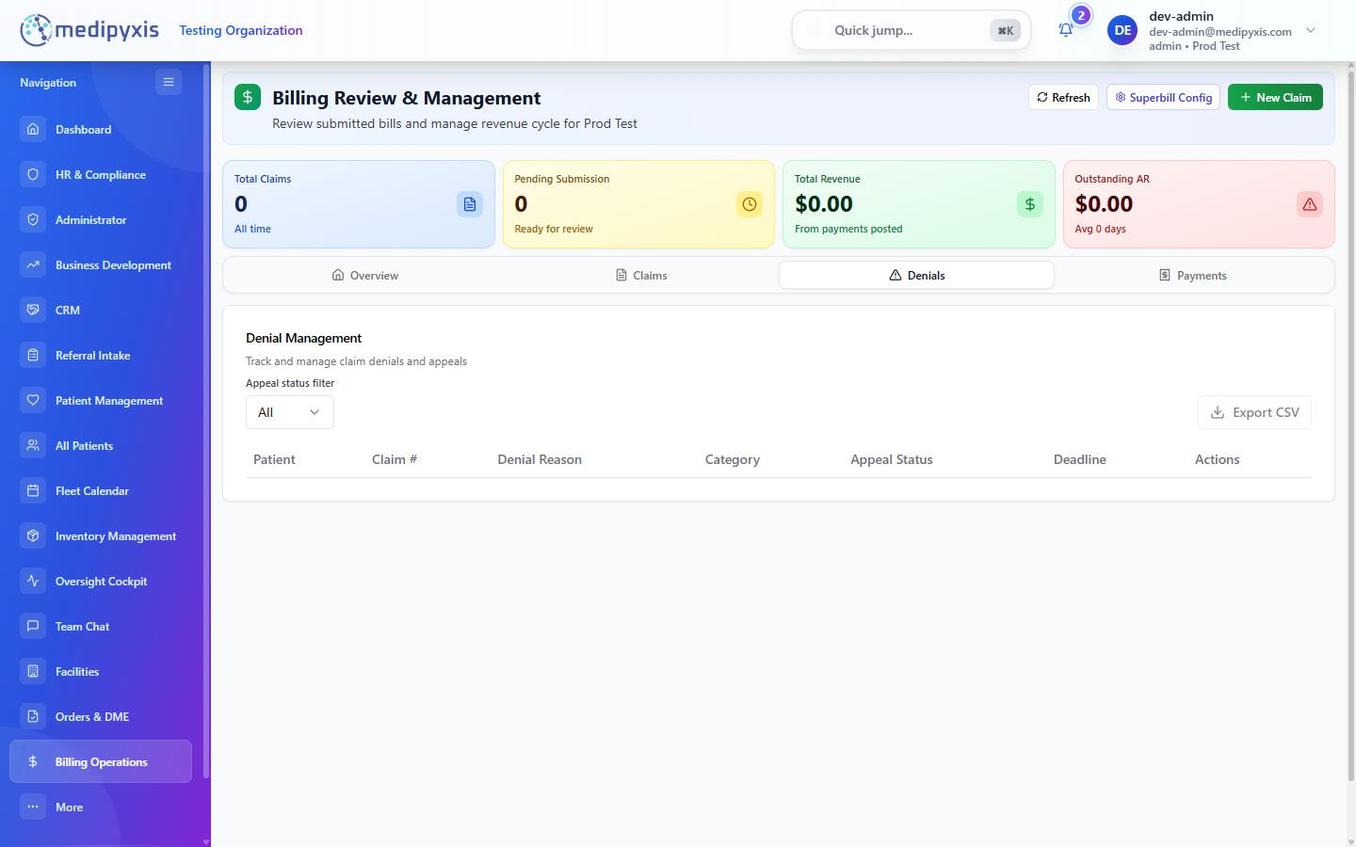 The Denials view. The Appeal Status column shows the current stage for each denial. Items in Not Started or Needs Review need attention first.
-
Identify priority denials. Sort by aging to surface the oldest denials first, and filter by Appeal Status to find items that have not been actioned.
-
Open the denial record. Click a denied claim to open the denial detail. Review: - The denial reason code and description from the ERA or payer correspondence. - The original claim's date of service, procedure codes, and diagnosis codes. - Any previous appeal history in the activity log.
-
Set status to Needs Review. This signals to other billers that the denial is being worked.
-
Determine the root cause. Common denial categories and typical responses:
| Denial Category | Typical Response |
|---|---|
| Missing or invalid documentation | Request records; set Pending Documentation |
| Medical necessity | Gather clinical support; set Pending Provider Input, then Ready to Appeal |
| Duplicate claim | Verify and void the duplicate; Claim Corrected & Resubmitted or close |
| Timely filing | Gather proof of timely filing (clearinghouse timestamps); set Ready to Appeal |
| Coding error | Correct the codes and resubmit; Claim Corrected & Resubmitted |
| Authorization missing | Obtain retroactive auth if available; otherwise Not Appealed with a note |
Steps — work and submit an appeal
-
Gather supporting documentation. Attach the payer's denial EOB/ERA detail, clinical notes supporting medical necessity, and any payer-specific appeal form. Set the status to Pending Documentation while you collect these.
-
Prepare the appeal. Write the appeal narrative in the notes: reference the claim number, date of service, denial reason code, and the clinical or regulatory basis for the appeal. When ready, set the status to Ready to Appeal.
-
Submit the appeal to the payer. Send the appeal package through the payer's channel (portal, fax, or mail) and record the confirmation number in the notes.
-
Set status to Appeal Submitted and record the submission date. Move it to Under Payer Review while you wait, and to Additional Info Requested if the payer asks for more.
Steps — track to resolution
-
Record the payer's decision.
- Approved → set Appeal Approved. The claim should reprocess for payment and post through an ERA.
- Accepted for review → Appeal Accepted.
- Denied → Appeal Denied; decide whether a further level of appeal or a correction is warranted.
- Corrected instead of appealed → Claim Corrected & Resubmitted.
-
Close the denial. When no further action is warranted:
- Resolved, nothing more to do → Closed — No Further Action.
- Balance written off → Closed — Written Off.
Result
The denial record reflects the current appeal status and a full activity trail. Closed denials drop out of the active Denials view; use the status filter to include them in reporting.
Troubleshooting
| Symptom | Likely cause | What to do |
|---|---|---|
| Denial not visible in the Denials view | ERA has not been posted yet | Check the ERA/Payments view; post the ERA first |
| Appeal Status dropdown is read-only | Your role does not have edit access | Ask your administrator to verify your role permissions |
| Denial shows Appeal Approved but no ERA payment received | Payer reprocessing is pending | Wait for the next ERA cycle; check the Stedi dashboard for a pending 835 |
Related
Auto-rendered from related: in frontmatter.