Facilities reference
The Facilities module lists every facility registered under your organization and provides controls to activate, deactivate, and manage each location.
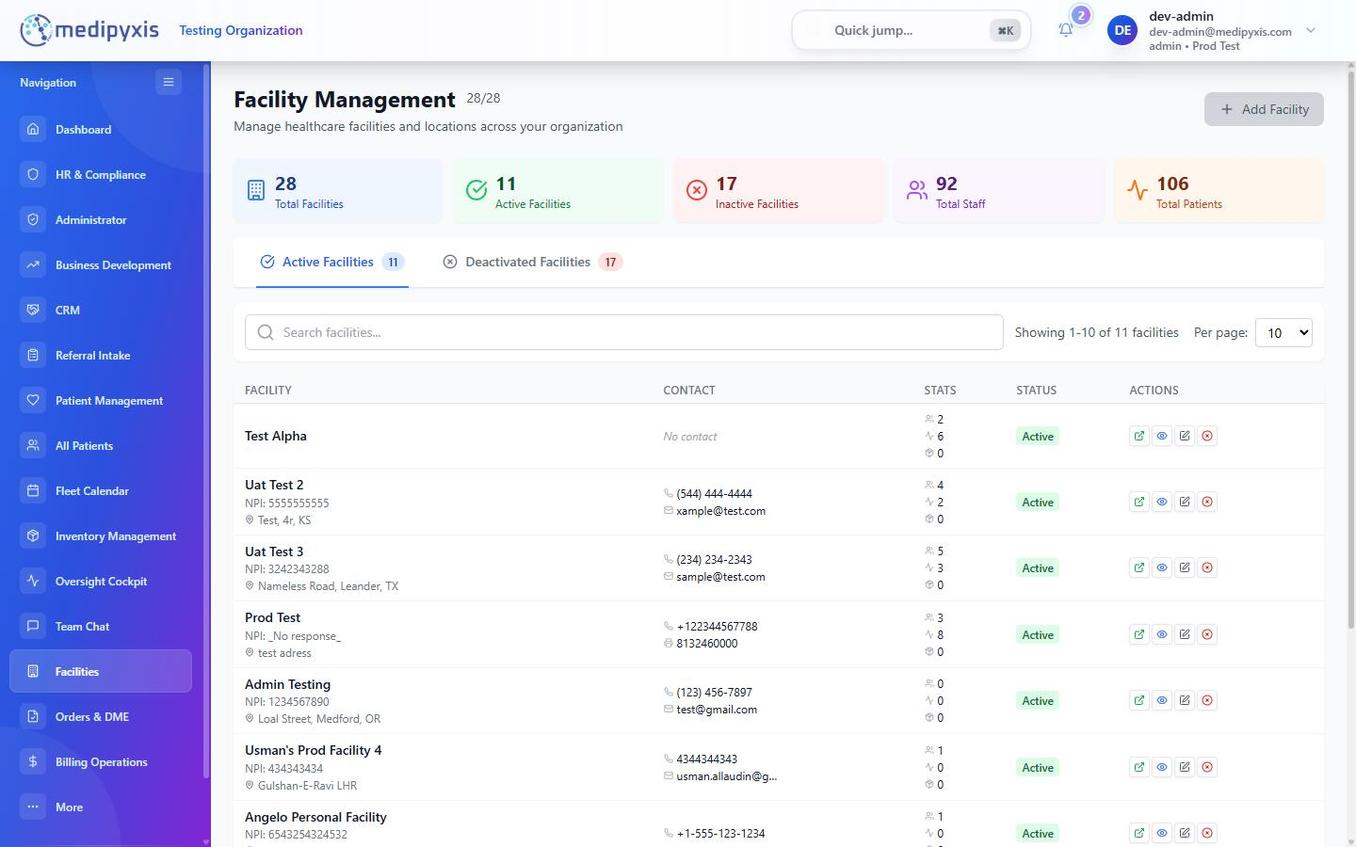
Facilities list. Each row represents one facility location.
List columns
| Column | Contents |
|---|---|
| FACILITY | Facility name and address. Clicking the name opens the facility detail panel. |
| CONTACT | Primary contact name and phone number for the facility. |
| STATS | Aggregate counts for the facility: active providers, total patients, and visits in the current month. |
| STATUS | Active (facility is operational and visible across all modules) or Inactive (facility is hidden from scheduling, routing, and user assignment). |
| ACTIONS | Context menu (⋯) with options: Edit, Deactivate / Reactivate, View Users. |
Active vs. inactive
| State | Effect |
|---|---|
| Active | Facility appears in provider assignment, Fleet Calendar routing, and patient assignment. Users can be assigned to it. |
| Inactive | Facility is hidden from all operational dropdowns. Existing data is preserved but no new activity can be logged against it. Users assigned only to this facility lose login access until reassigned. |
Demo environment counts: 28 total · 11 active · 17 inactive.
How to deactivate a facility
- Open the Facilities module from the sidebar.
- Locate the facility in the list. Use the search bar to filter by name or city if needed.
- Click the Actions menu (⋯) in the row.
- Select Deactivate. A confirmation dialog explains the downstream effects (users, scheduling, routing).
- Confirm. The STATUS column updates to Inactive immediately.
To reactivate, repeat the steps and select Reactivate from the Actions menu.
Editing facility details
Click Edit from the Actions menu to update the facility name, address, NPI, contact, or billing information. Changes take effect immediately across all modules.
Related
Auto-rendered from related: in frontmatter.