Sign off on a visit with Provider Attestation (step 17)
Complete step 17 of the Visit Wizard by reading the attestation statement, applying your electronic signature, and locking the encounter note; use the Addendum process for any corrections after signing.
Before you start
- All 17 steps of the Visit Wizard are complete, including the LCD Navigator™ checklist (step 16).
- You are the rendering provider — a
clinicianwith a provider profession title (NP, PA, MD, DO) or amedical_director. Support staff cannot complete Provider Attestation. - You have confirmed that all clinical documentation reflects the actual care provided during this encounter.
Steps
Review and sign
- Reach step 17. Complete all 16 preceding steps. Click Provider Attestation in the step navigator or click Next from step 16.
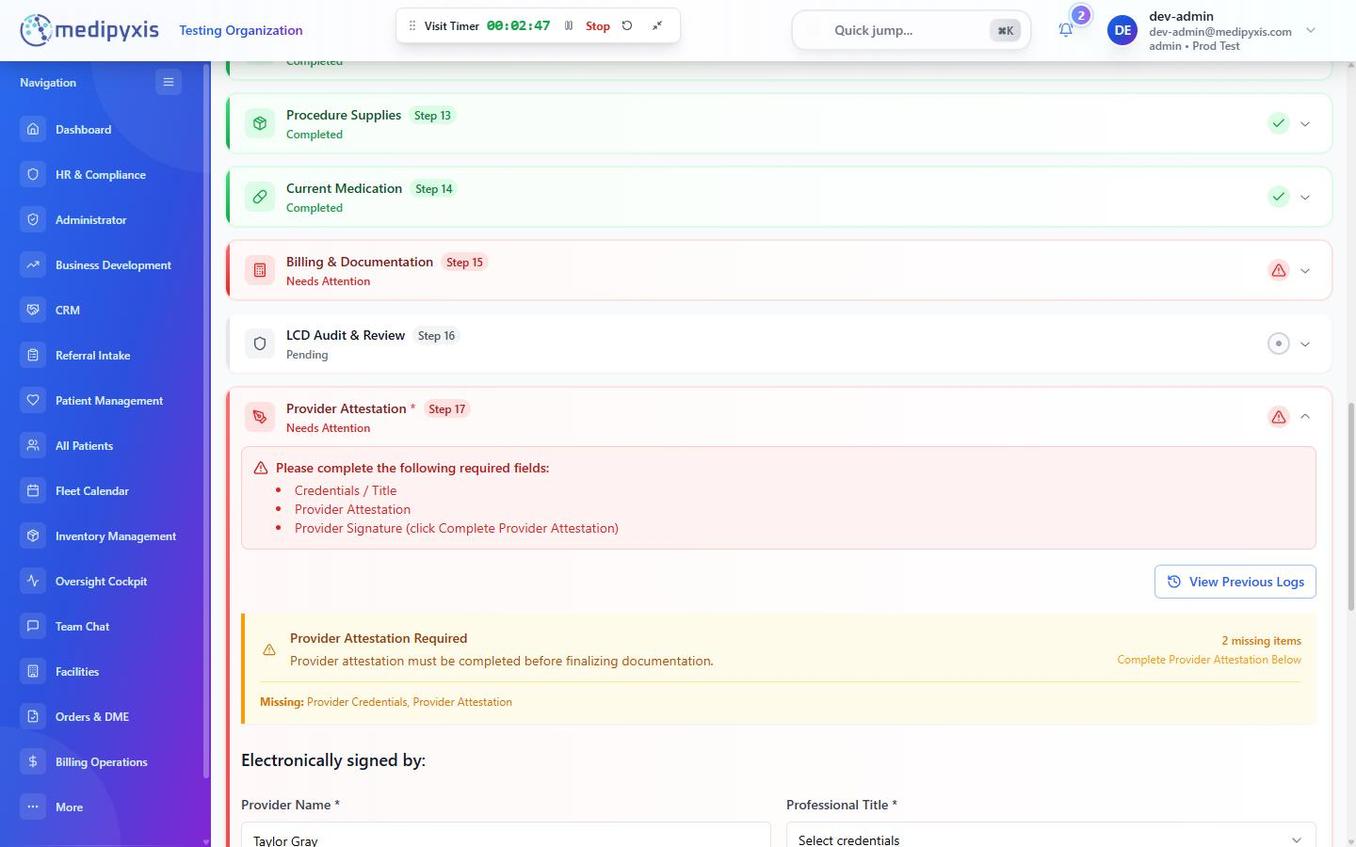
The top of the Provider Attestation screen. The attestation statement and legal disclosure appear before the signature field.
- Read the attestation statement. The statement reads in full:
"I, the rendering provider, attest that the information contained in this encounter note is accurate and complete to the best of my knowledge and that the services documented were medically necessary and performed as described."
- Read the legal disclosure. The disclosure references:
- ESIGN Act (Electronic Signatures in Global and National Commerce Act)
- UETA (Uniform Electronic Transactions Act)
- CMS documentation and signature requirements
- HIPAA privacy and security standards
Scroll to the bottom of the disclosure to activate the signature field.
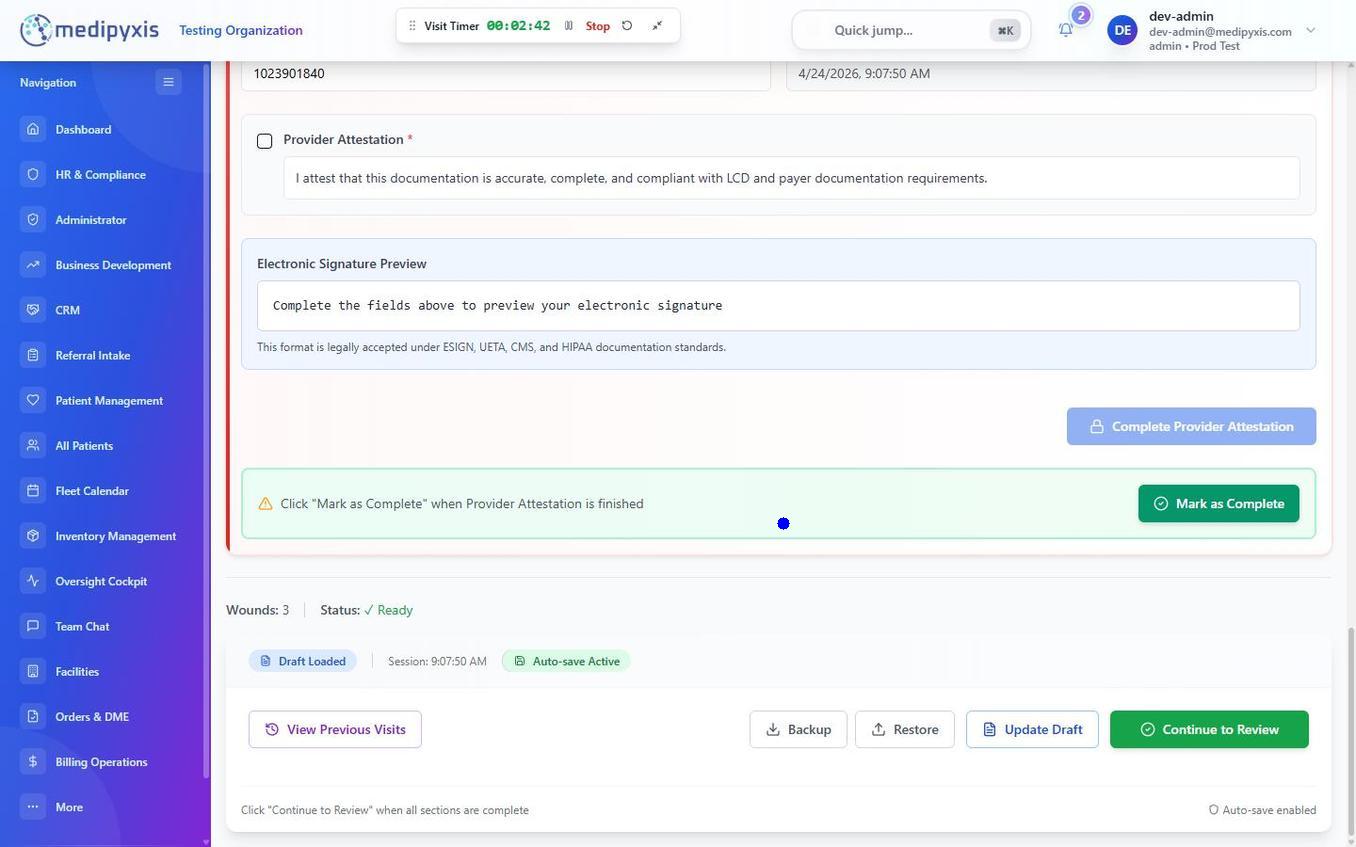
The e-signature area. Sign with a stylus, finger, or mouse. The Sign & Lock button activates only after a signature is drawn.
-
Apply your electronic signature. Draw your signature in the signature pad. To clear and redraw, click Clear.
-
Click Sign & Lock. Medipyxis locks the encounter note, records the date/time stamp and your user identity, and updates the appointment status on the Fleet Calendar to
Visit Completed. A Go to Billing prompt appears so you can move the completed encounter into the billing workflow.
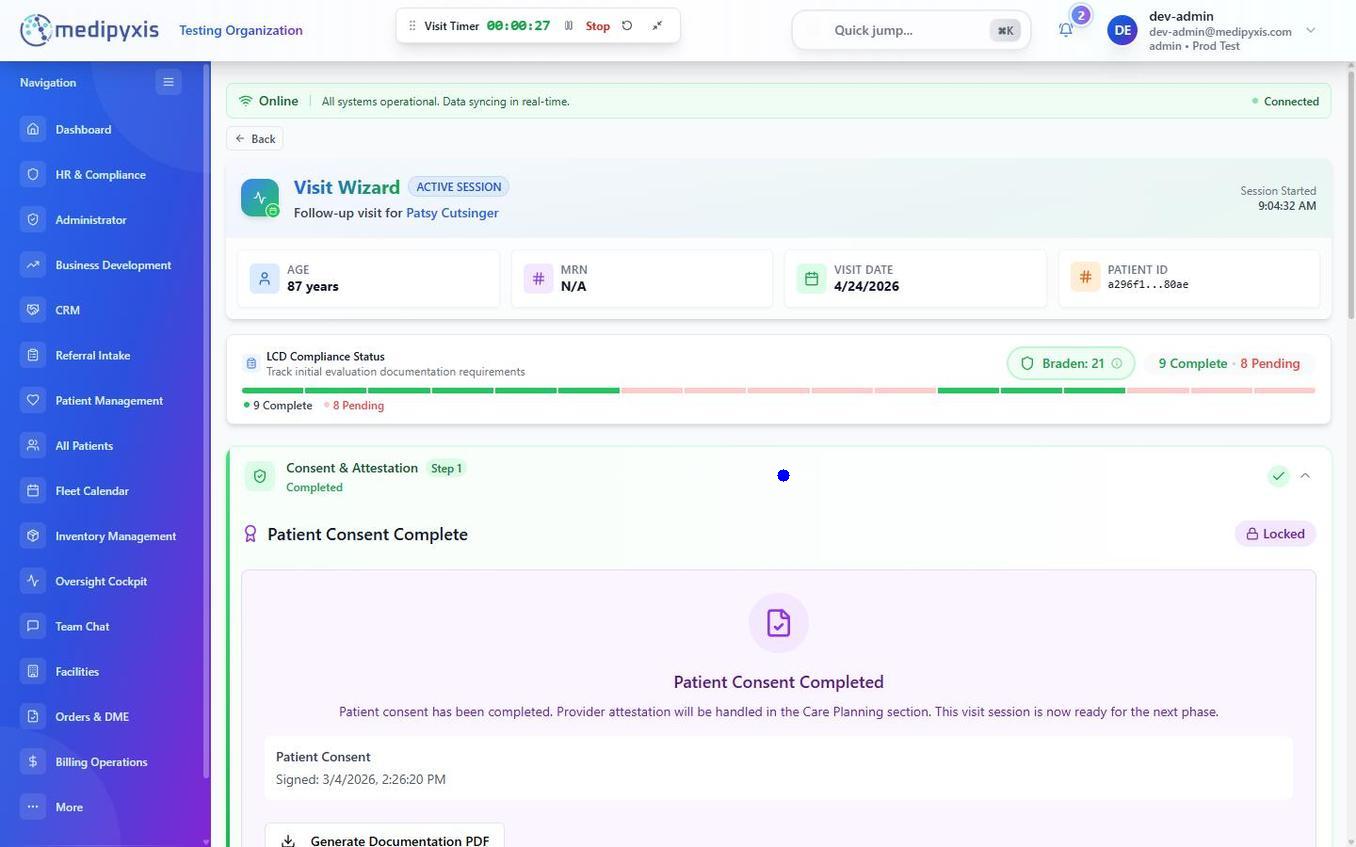
Confirmation that the attestation is recorded and the note is locked. The encounter is now read-only.
Result
The encounter note is locked and marked Visit Completed. The signed note is available in the patient's chart and, depending on your billing workflow, is queued for claim generation in the Billing & Documentation module. The rendering provider's name, credential, signature, and timestamp appear on the note header.
Pending Co-Signature state. The supervising provider receives an in-app notification and must also complete their attestation step.
Adding an addendum after signing
Once a note is signed, the encounter is read-only. To correct or add information, use the Addendum process.
- Open the locked encounter from the patient chart or Fleet Calendar.
- Click Addendum in the top action bar.
- Select an addendum reason from the dropdown. The list covers three kinds of correction:
- Clinical corrections — a correction to clinical documentation, or additional findings documented after the visit.
- Billing corrections — a billing code correction, which you should coordinate with your biller.
- Corrections to written-in language — reasons that name a specific kind of sentence the note used to supply on your behalf, for example Procedure tolerance was a template default or LCD citation was wrong (cited policy does not govern this service). Use these when an older signed note contains a sentence you did not write. How your progress note is written lists what those sentences were.
Pick the reason that names what you are correcting. A reviewer reads the reason alongside the addendum text, so a precise reason is worth more than a general one. 4. Enter the addendum text. Describe what changed and why. Do not delete or re-state the original note — the addendum appears as a dated attachment below the original signed note. 5. Click Save Addendum. The addendum is appended to the encounter record with your name, credential, and a new timestamp.
Troubleshooting
| Symptom | Likely cause | What to do |
|---|---|---|
| Sign & Lock button disabled | Signature pad is empty | Draw your signature in the pad before submitting |
| Provider Attestation step is not accessible | Your account is not a rendering provider | Ask the rendering provider to sign in and complete step 17 |
Appointment still shows Draft Saved after signing |
Browser did not sync the status update | Refresh the Fleet Calendar |
| Addendum reason dropdown is empty | Organization has not configured addendum reasons | Contact your administrator to configure addendum reason codes |
| Addendum button not visible | Encounter note is not yet signed (still in draft) | Complete Provider Attestation first |
Related
Auto-rendered from related: in frontmatter.