Create a DME order
Generate a durable medical equipment prescription from the Orders & DME module or directly within the Visit Wizard.
Before you start
- The patient must exist in your system.
- You must have prescribing authority or be creating the order on behalf of a supervising provider.
- Know the required equipment category and any payer-specific HCPCS codes.
Steps
- Open Orders & DME. From the patient's chart open Orders & DME, or reach it from the Orders & DME section (section 12) of the Visit Wizard (the link carries the patient context automatically).
- Select the DME tab.
- Click New DME Order.
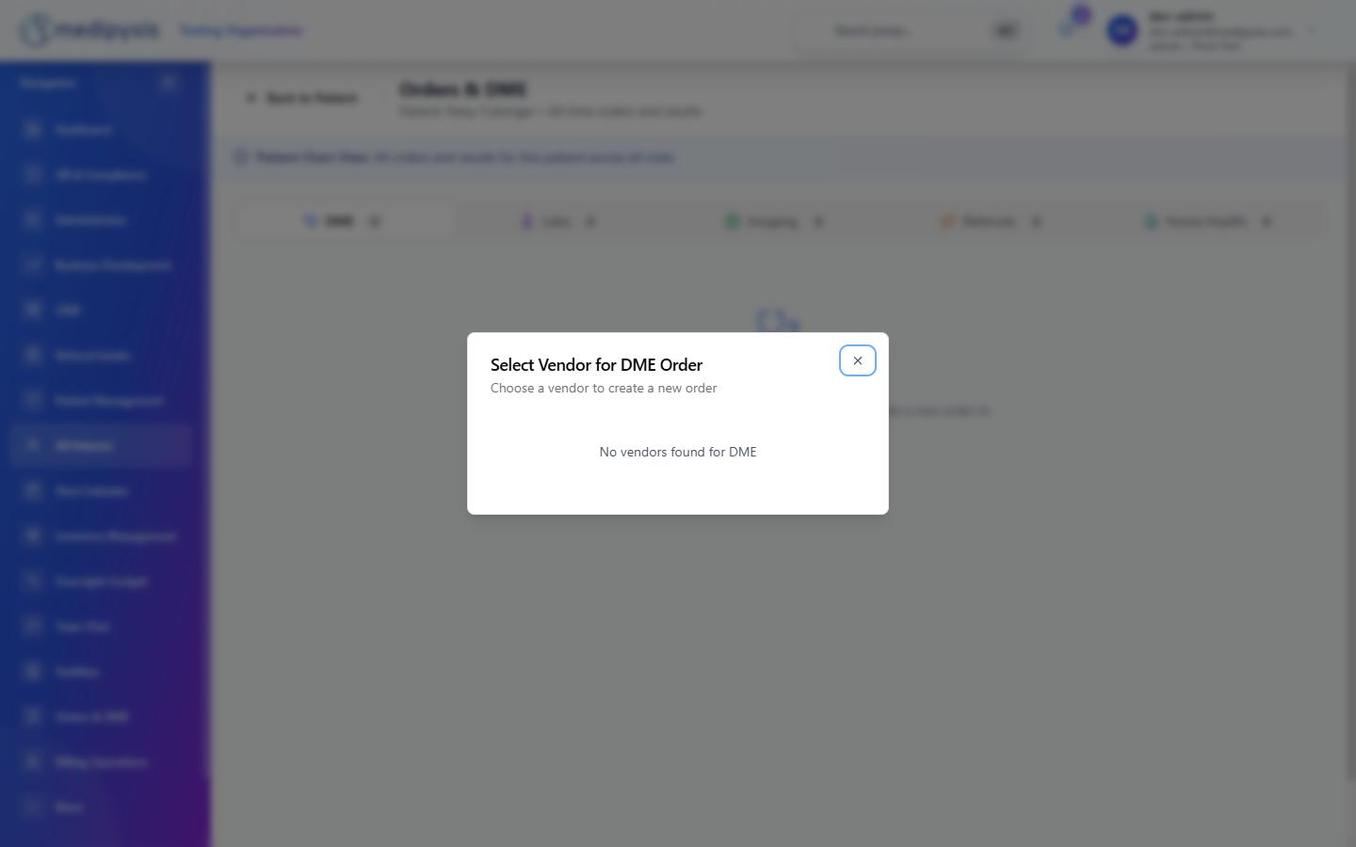
DME order creation form — fill fields from top to bottom.
- Select the Patient. Begin typing the patient name or date of birth. Choose the correct record from the autocomplete list.
- Select Equipment Category. Choose the appropriate category (e.g., wound care supply, compression device, mobility aid). Available HCPCS codes filter based on your selection.
- Choose the Item. Select the specific item from the filtered product list. The HCPCS code populates automatically.
- Set Quantity and Units. Enter the prescribed quantity and select the unit of measure (e.g., each, box, roll).
- Enter Duration. Specify the length of need (e.g., 3 months, lifetime). This field appears on the prescription and is required for Medicare compliance.
- Add Clinical Justification. Enter the diagnosis or ICD-10 code that supports medical necessity. Type to search the ICD-10 picker.
- Select the Ordering Provider. Confirm or change the provider name — their NPI populates automatically from their profile.
- Select the Vendor. Choose a supplier from the enabled-vendor list for DME. If the vendor has a custom order form, select it to capture the vendor-specific fields.
- Add Notes (optional). Include any special fitting instructions or delivery requirements.
- Save or send. Save the order as a Draft, or Send Fax / Send Email to dispatch it to the vendor. On sending, the order moves to Submitted.
Result
The DME order appears in the DME tab with its status (Draft until sent, then Submitted → Received → Provisioned as the vendor works it). When results or confirmations come back, use Upload Results on the order. The order is linked to the patient record for tracking.
Troubleshooting
| Symptom | Likely cause | What to do |
|---|---|---|
| Patient not found | Patient not yet created | Add the patient via Referral Intake or the Patients module |
| HCPCS code not shown | Wrong equipment category selected | Change the category — HCPCS codes are category-scoped |
| Submit button disabled | Required field missing | Check Patient, Equipment Category, Item, Quantity, Duration, and ICD-10 |
Related
Auto-rendered from related: in frontmatter.